Hunter Valley's Leading Residential & Commercial Solar Installers

Hunter Valley's Leading Residential & Commercial Solar Installers

If you've just had a system installation, there's a strong chance that you want to see how it performs! Getting your system setup and working can help you gain valuable insight into how your system performs both daily and over its lifetime. Let's go through how to use your app.
As a part of your installation, your installer will set up your system and connect your app to enable you to monitor and control your system. Sungrow’s app is called iSolarCloud which can be access both online and on the app for both Android and iPhone.
Monitor your system’s performance
See live and historical usage data
Track battery charging cycles
Check your solar feed-in exports
Historical savings and solar info
Notifications for fault alerts
System configuration
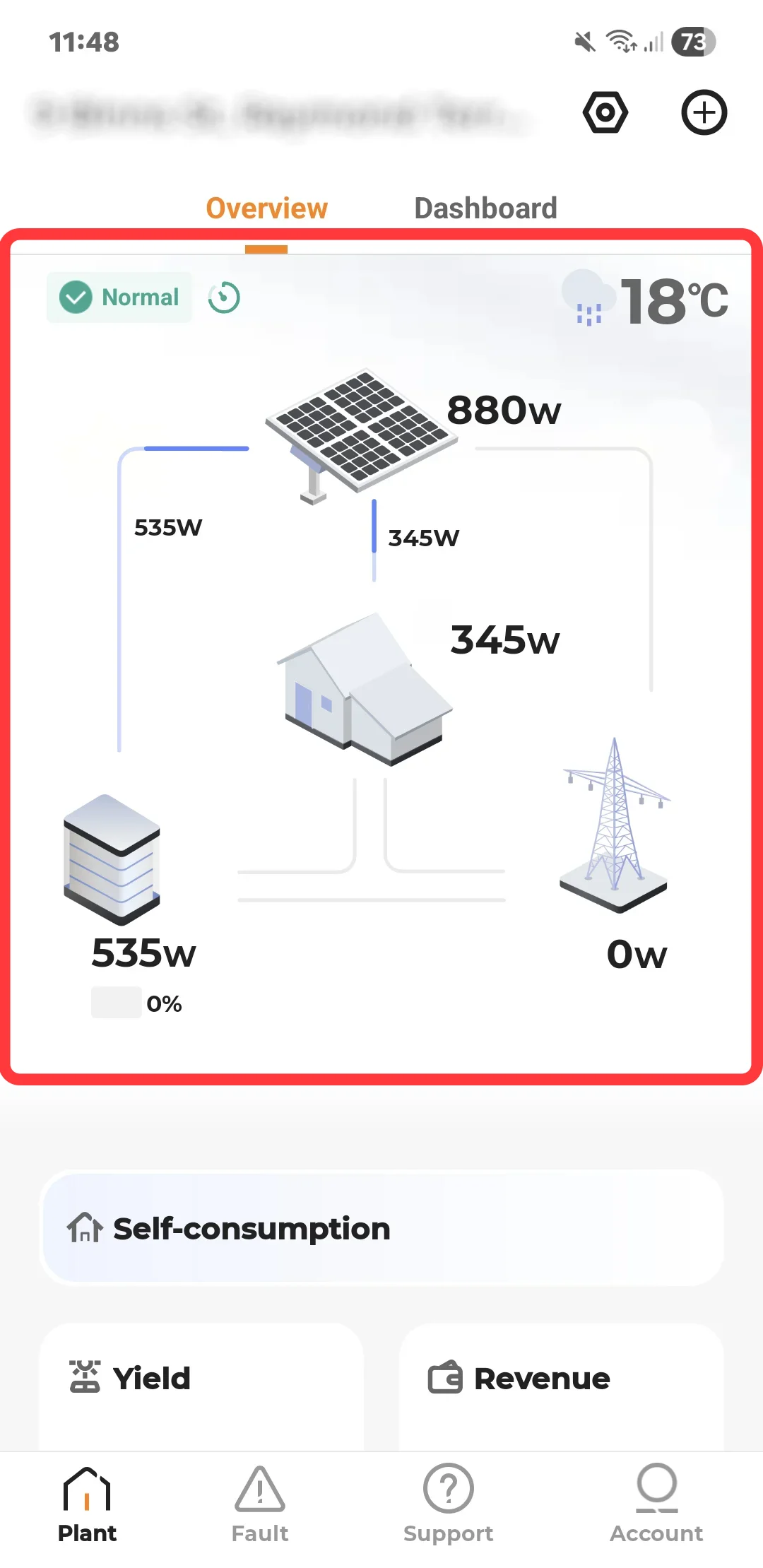
After installing the iSolarCloud app, and signing in using the details sent to you via email, you will see your overall system (plant) performance summary, its operation status, and the outside temperature and weather conditions.
The weather is important as it gives context to when a system is not producing much solar.
Here you will be able to see where your energy is being generated and sourced as it will vary throughout the day.
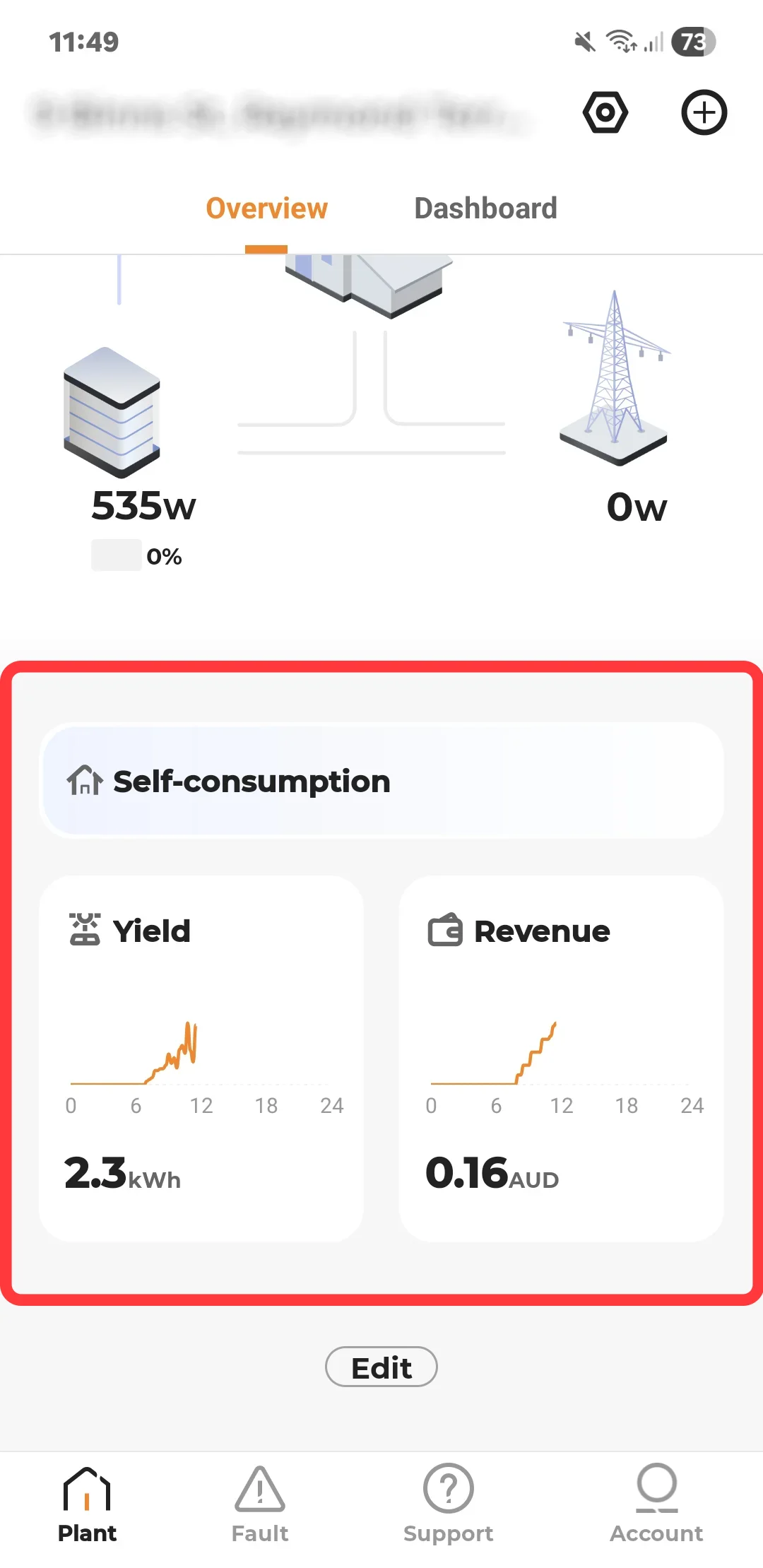
Scrolling down, you can see more info about estimated yield and revenue, as well as an edit option where you can add more elements to the layout.
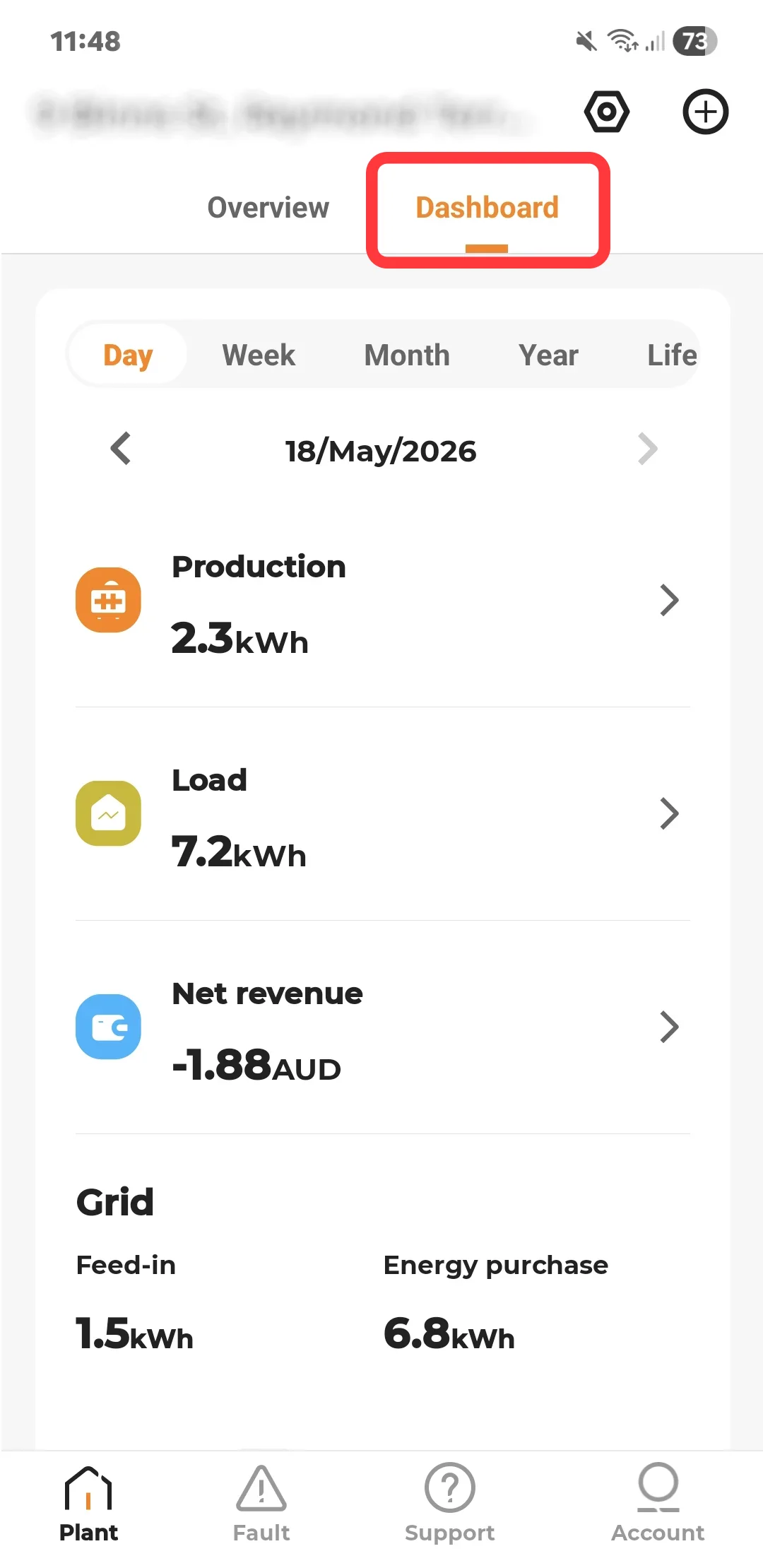
On the same page at the top, switching to 'dashboard' will enable you to access more in-depth information about production and usage.
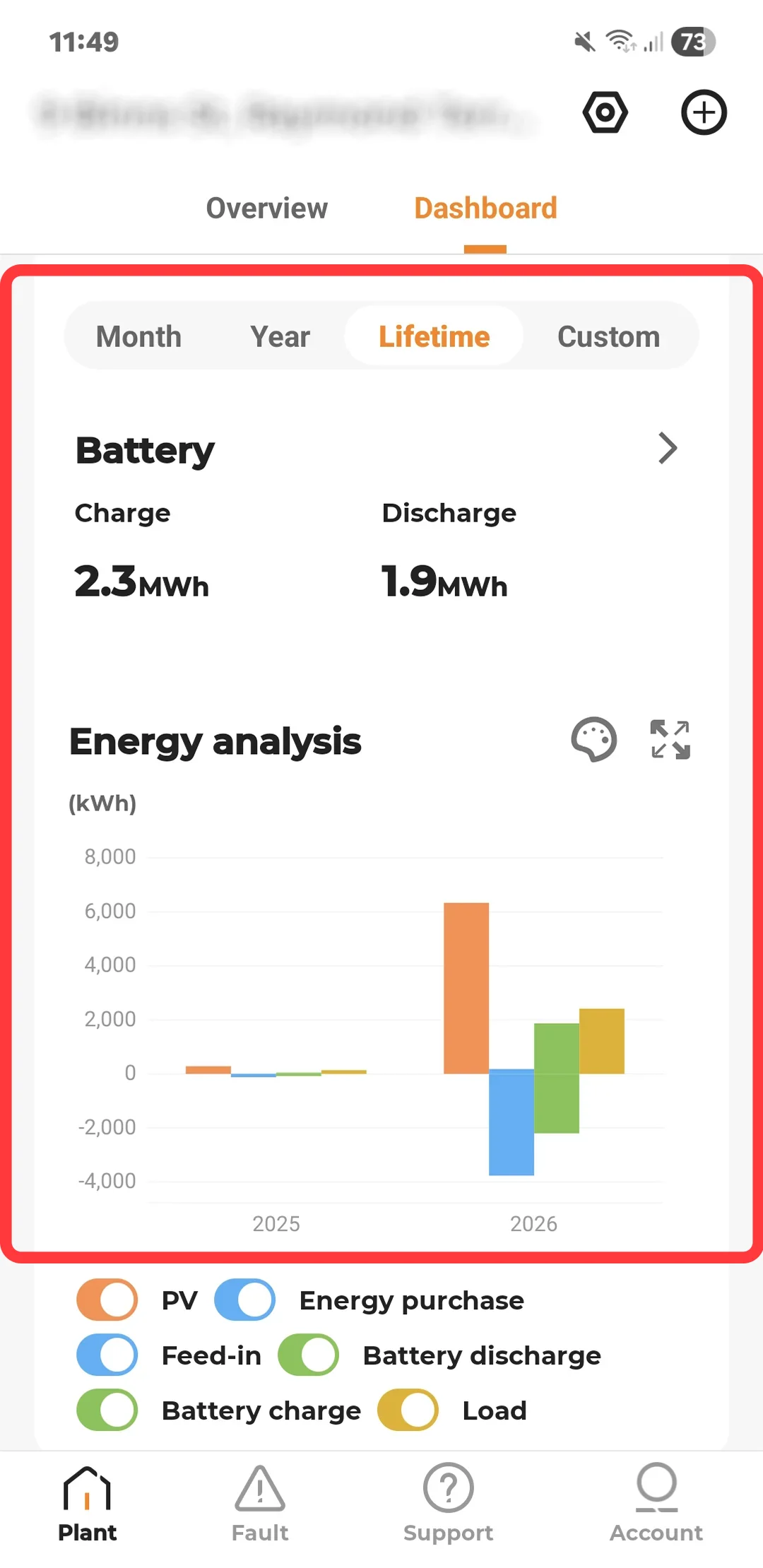
You can sort your data from daily to the system's overall lifetime for comparison and analysis.
At the bottom you are also able to turn off elements for a clearer picture of your activity.

1. SOLAR, 2. BATTERY, 3. BATTERY SOC, 4. GRID
If you ever suspect an issue, or receive a notification about a system fault, they will be listed here.
Choosing between pending and resolved, you can check currently active error codes, as well as historical faults.
For minor issues like grid blackouts, Sungrow systems will generally sort themselves out which remove the need for homeowners to do anything.
In the case of a system error that is not self-resolved, check out our error code page and then contact the company who installed your system.
.webp "Sungrow solar pending fault")
.webp "Sungrow app resolved errors page")
Navigating to the 'support' tab at the bottom, another menu system pops up giving you access to your systems configuration and commissioning tools.
Here you can adjust your WIFI settings, download firmware updates, and view Sungrow's tutorials and user manuals.
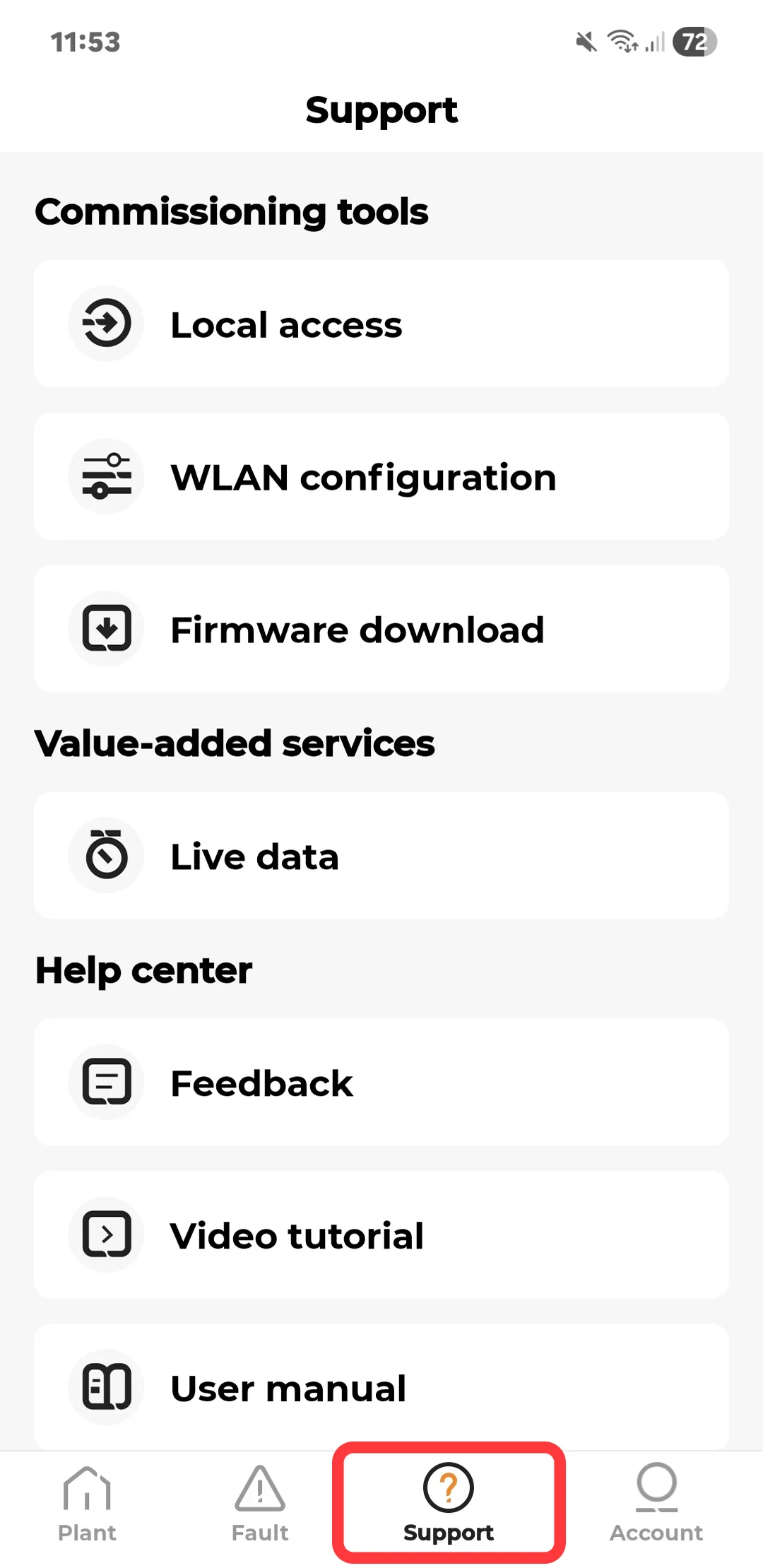
.webp "Support page iSolarCloud app")
Using the settings icon at the top right on the 'plant' tab, you can access your systems settings.
Here you can configure various things like your tariff information, energy management, and view device information like serial numbers.
Below are what each section means.
.webp "Sungrow solar app settings")
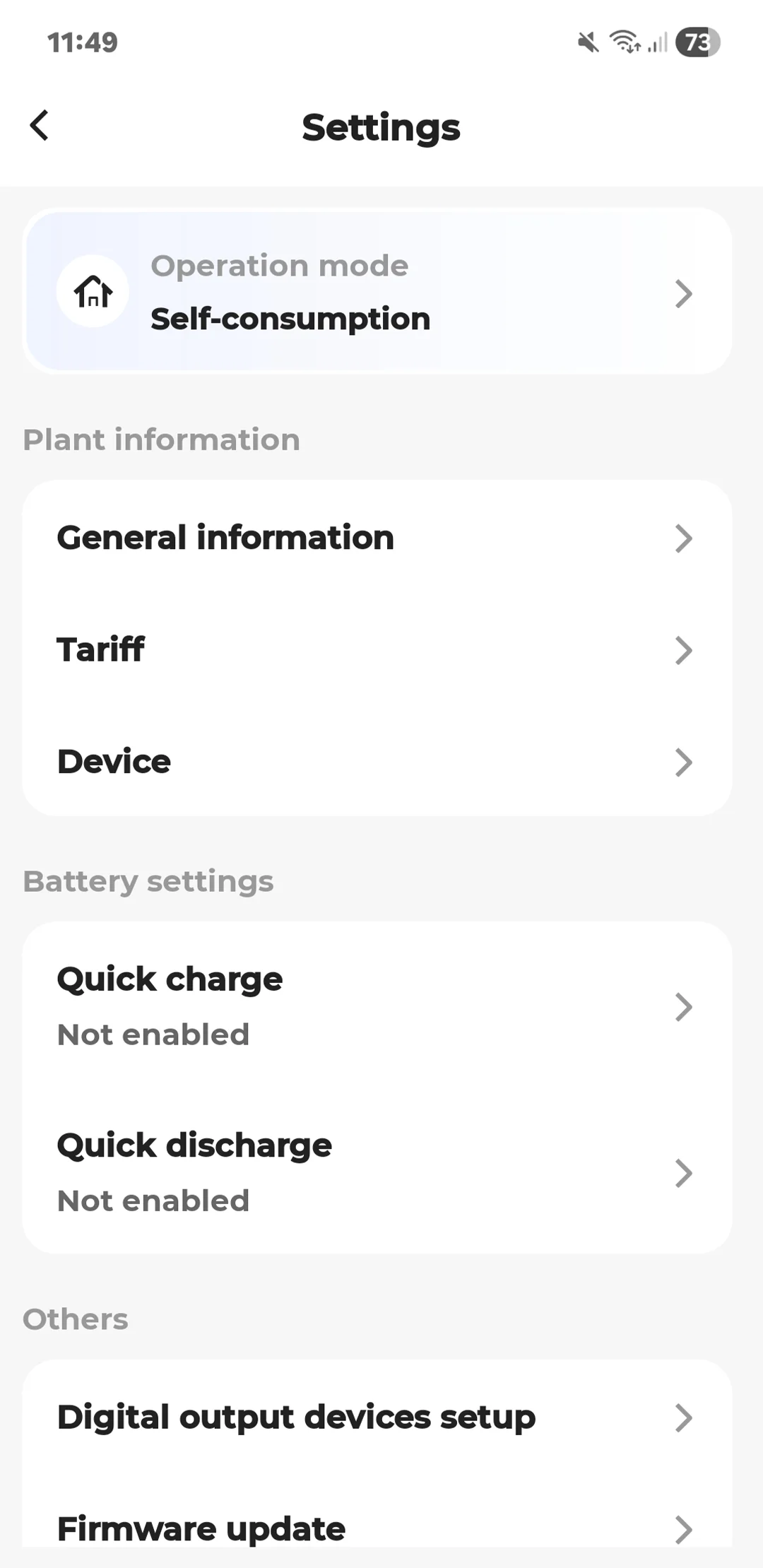
.webp "Settings page on the iSolarCloud app")
In the energy management setting, you can adjust the mode your system runs in and how it behaves.
Self-consumption mode is the standard mode that best suits most households in Australia. This mode automatically uses solar power first, and charges the battery with excess generation. It only imports grid electricity to fill the gaps.
Forced mode is when you take manual control of the battery where you can decide when to charge or discharge it at specific times.
Microgrid mode is for more advanced systems that have additional generators or backup power sources, mostly found in off-grid and rural setups where the inverter needs to manage various sources of energy.
Overall, your installer should be changing to the mode that best suits you, so there is generally no need for this to be changed after it has been setup unless told otherwise.
.webp "Self-consumption mode iSolarCloud")
.webp "Sungrow energy management")
Under the 'general information' tab, you can view all your system and installation details.
.webp "General information settings")
.webp "General settings information Sungrow")
The 'tariff' section in the iSolarCloud app is designed to help your app provide estimated costs, savings, and optimised performance.
With this information, your system knows when electricity is cheap, when it's expensive, and when exporting solar provides the best value.
For more info on tariffs, you can check your electricity bill which will tell you which one you're on. You can also read more about tariffs here.
To adjust these settings, enter the new figures and press 'confirm'.
.webp "iSolarCloud tariff Settings")
.webp "Tariff consumption settings iSolarCloud")
The 'device' section is a component overview where you can see each parts' performance and operation.
Here you can view component serial numbers, live individual metrics, and their operational status. If the system is offline, it will display it where it says 'normal'.
If you're wanting more in-depth data, this page displays elements like your battery's state of charge (SoC) and voltage. Learn about battery storage here.
.webp "Sungrow app device settings")
.webp "Sungrow system app components")
If you need to take temporary control of your battery, quick charge and discharging enables you full control and override the battery's automatic functions.
These are used mostly for preparing for an outage, taking advantage of grid pricing, and shorter-term energy management.
.webp "Sungrow quick charge options")
.webp "Quick charge Sungrow app")
.webp "Solar Power Newcastle")
.webp "Quick discharge Sungrow battery settings")
Sungrow provide occasional firmware updates that can be found here. If available, you will see an available update that can be downloaded whenever you'd like.
Firmware updates are pushed to fix bugs and improve overall performance from system stability, to communications, to battery logics.
This can be something you do yourself, or contact your installer to push an update. Either way your system will need to be shutdown temporarily. The downtime will depend on the size of the update.
.webp "How to download firmware update Sungrow")
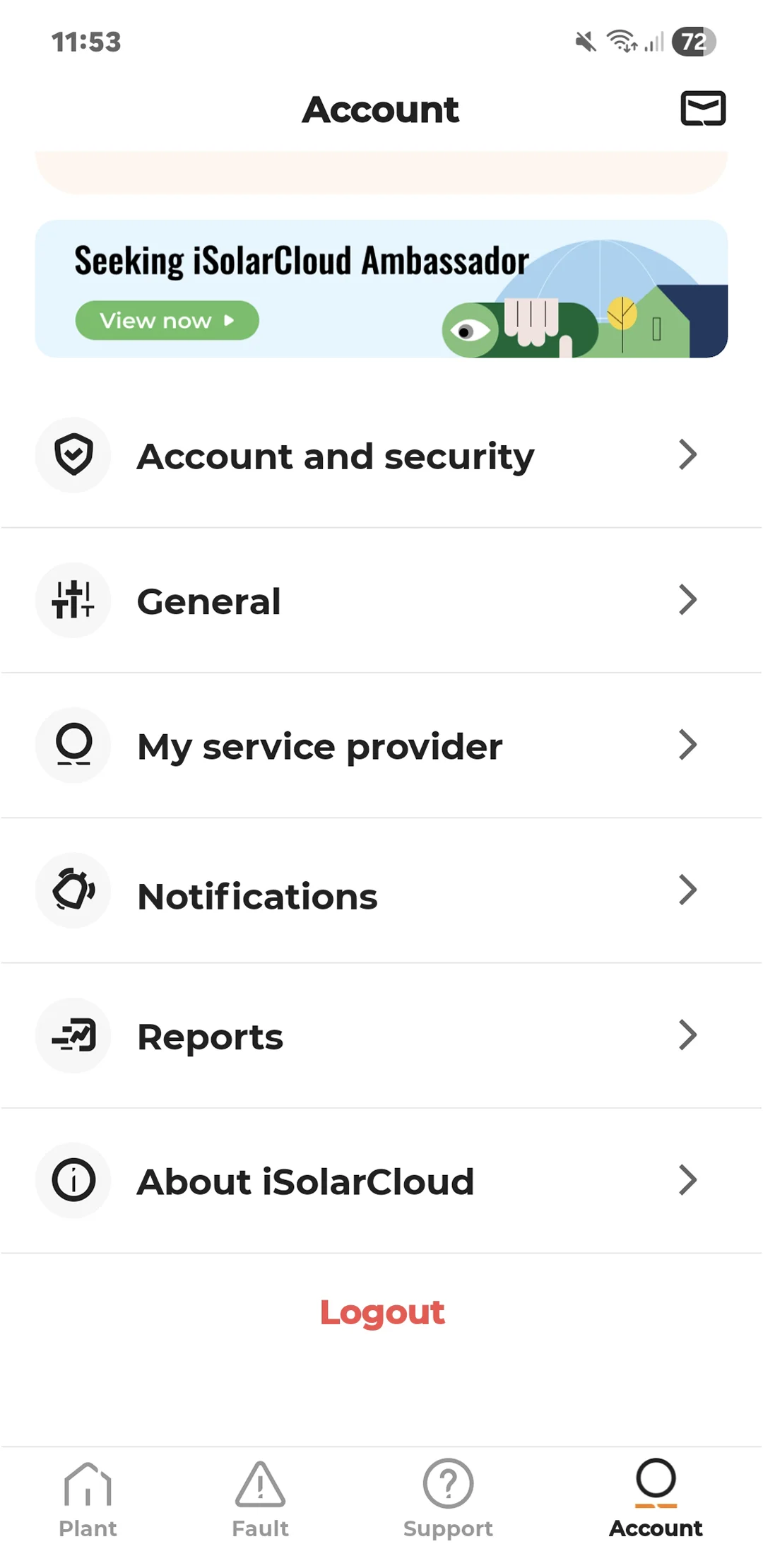
In the account tab, you can access your account related settings like password changes, notification preferences, and service provider information.
To find the most accurate total revenue figures, you’ll be best off referring to your energy bill. Sungrow iSolarCloud’s revenue figures also take into account the total savings your system will be generating, in addition to the solar feed-ins. Whilst your monitoring app can say 40c in revenue, it is referring to both feed-in exports and the estimated savings on that day as if you were using grid electricity.
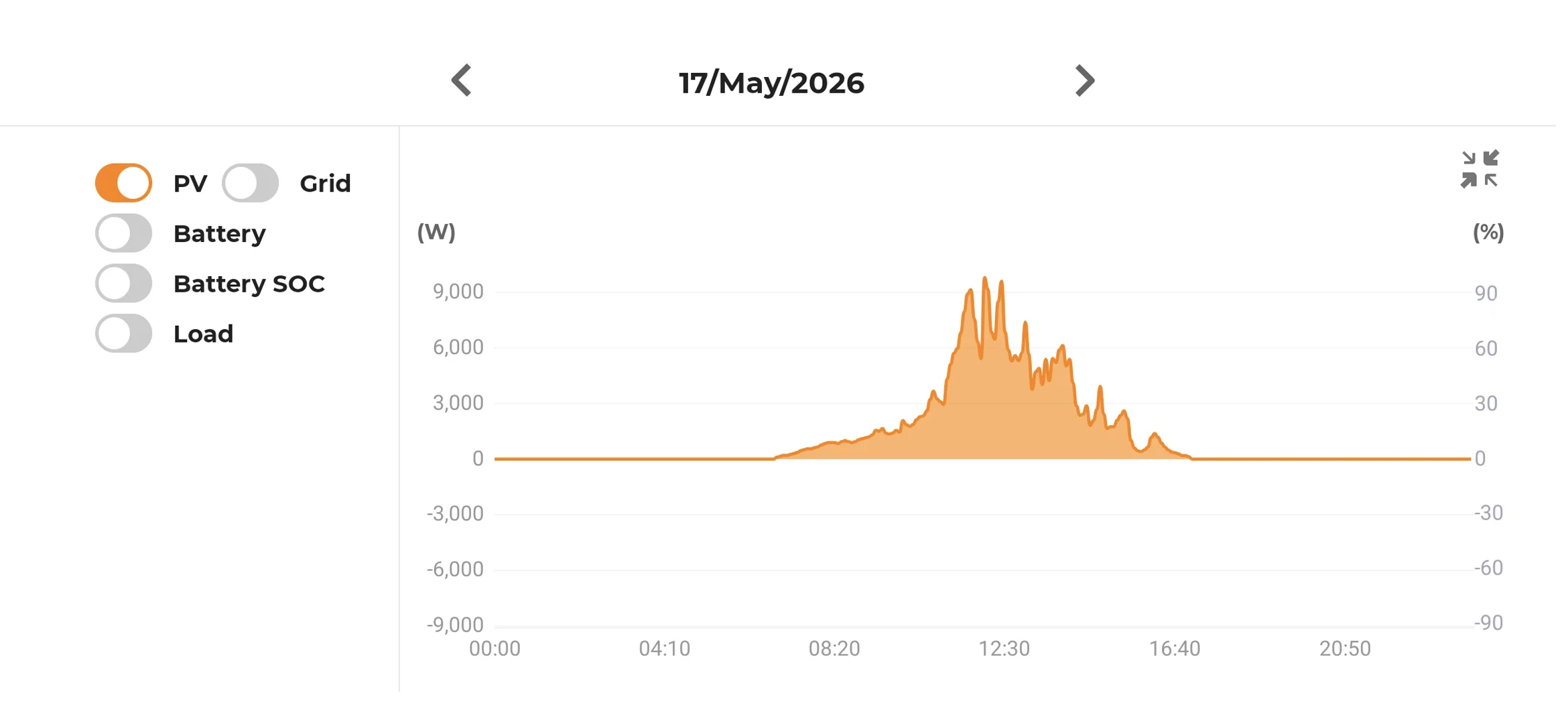
Understanding how a solar production and energy usage chart works can be a little tricky. We highly recommend analysing each colour and understanding what is happening for each element.
Isolating just the solar power production, it simply reflects the solar production as the sun comes out.
Measured alongside the left axis, it is measured in Watts (W), and peaks at around 9.2kW.
This system is a 13.6kW system, however this day was cloudy as you can see with the wavy peaks. On a purely sunny day, the increases and decreases are much smoother.
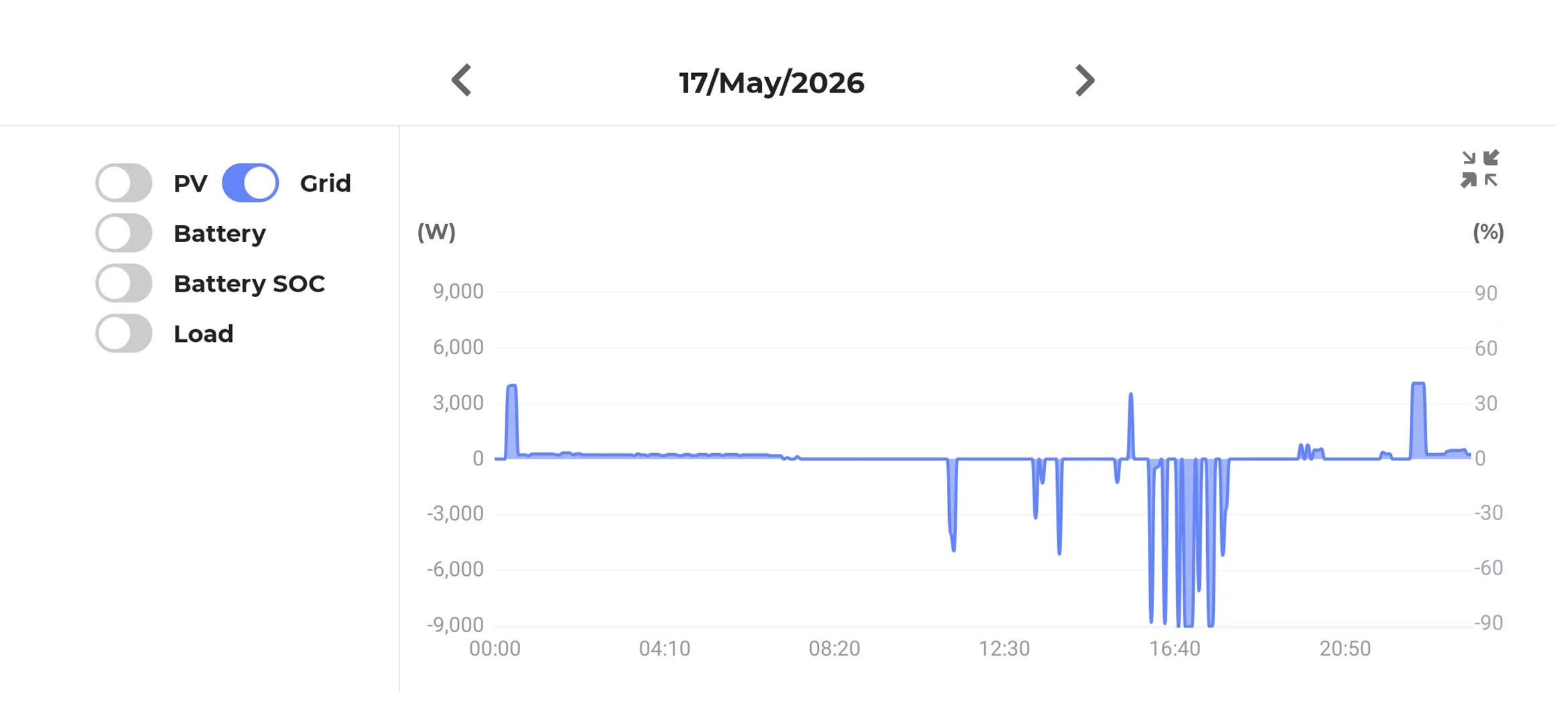
Anything above the line is electricity you're pulling from the grid; usually when your overall generation can't keep up and needs a bit more juice, or your battery is out of charge and solar is no longer producing.
In this graph, the battery didn't get a chance to recharge to 100%, so grid electricity was used to fulfill loads at midnight (probably hot water), and again at around 11pm.
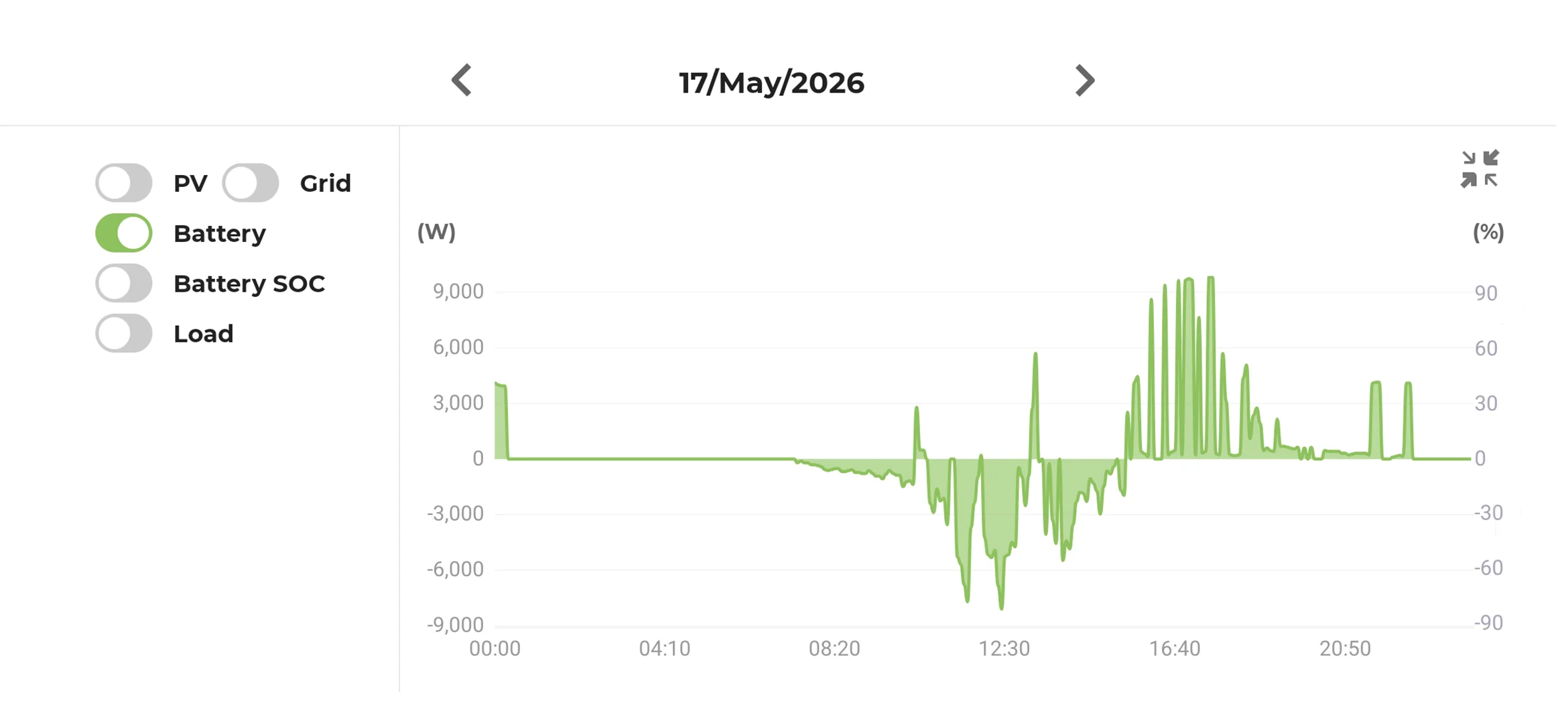
The battery's activity refers to when the battery is charging and discharging.
On this day, the battery began charging as soon as the solar started generating, and at around 4pm was discharged into the grid (as the usage goes above the line).
On a non-Amber system, the discharge peak (peak above the line) would have been much lower as it would've just covered the load.
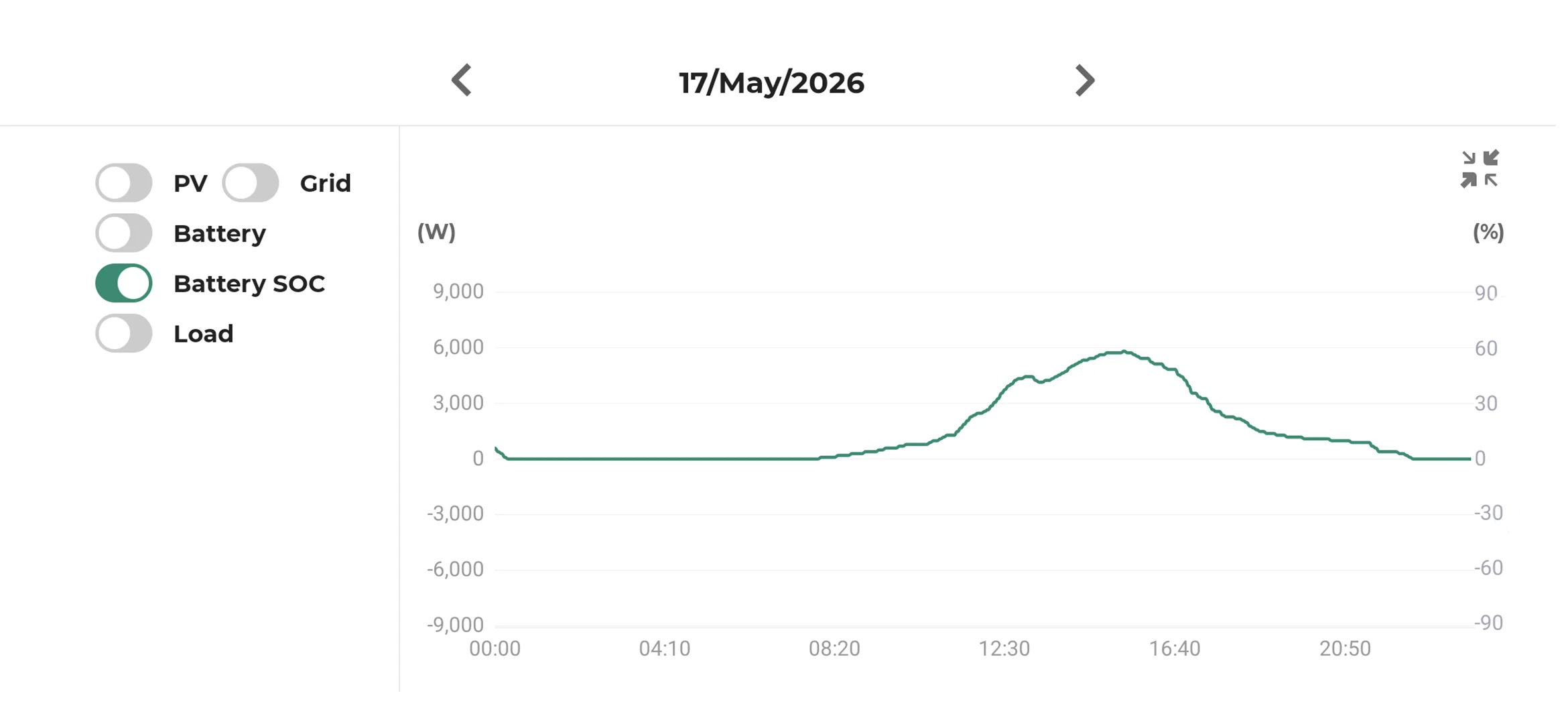
Like a mobile phone, this simple refers to the battery's percentage throughout the day.
As the battery wasn't fully charged the previous rainy day, the battery sat at 0% until the sun started charging it.
You can force the battery to charge using off-peak electricity manually if required.
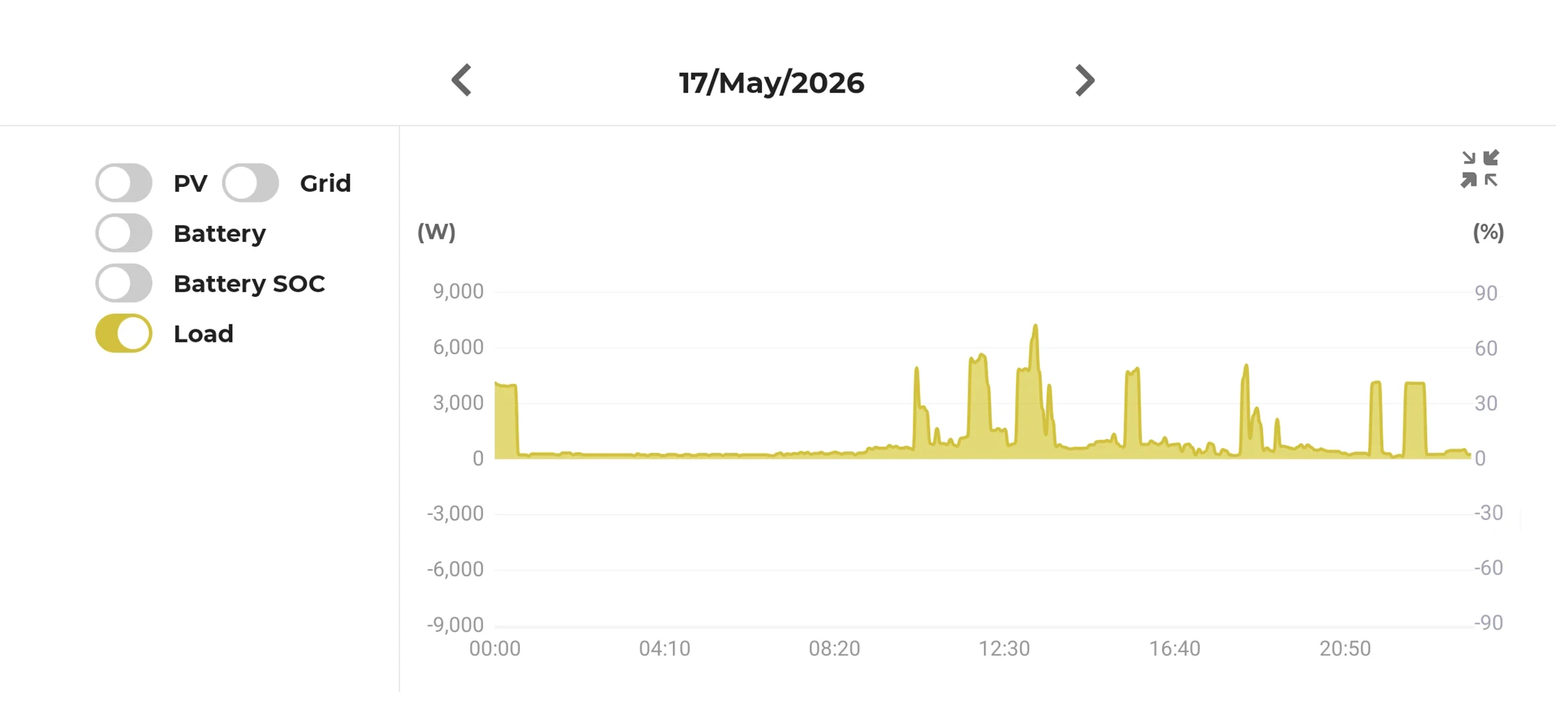
This line simply refers to the home's electricity consumption. Most of this homes' usage starts at around 10am and is completely offset by solar until around 4pm where battery storage kicks in.
Each spike represents a load whether it be your hot water, pool pump, or microwave etc., and will vary home-to-home.
If you're experiencing issues with your Sungrow system, visit our troubleshooting page for possible fixes and methods to resolve the
issue/s.
Leave a Comment