Hunter Valley's Leading Residential & Commercial Solar Installers

Hunter Valley's Leading Residential & Commercial Solar Installers
If you've just had a system installation, there's a strong chance that you want to see how it performs! Getting your system setup and working can help you gain valuable insight into how your system performs both daily and over its lifetime. Let's go through how to use your app.
Included in your installation, an installer should walk you through connecting the app and getting started with how to use it. Here's a simple guide to how to use the GoodWe SEMS+ solar app for both iPhone and Android.
When launching the GoodWe SEMS+ solar and battery app, you are met with a login page where you'll need to enter your details.
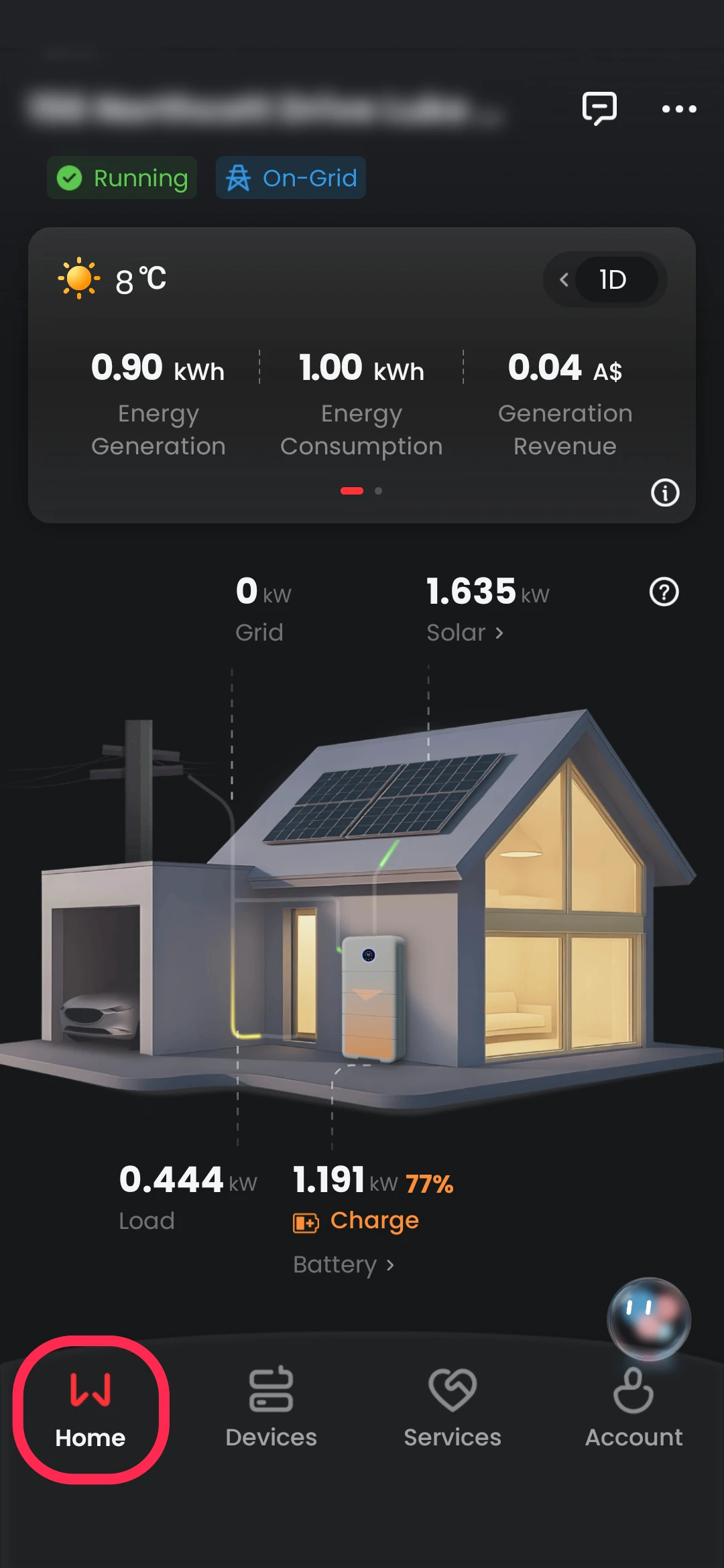
From here, the first page that shows is your home page which is a quick summary of how your system is performing and working.
You can see a simple house energy flow diagram, as well as quick statistics including:
Note: these figures are 1 Day by default, but can be changed from weekly, monthly, and yearly if required.
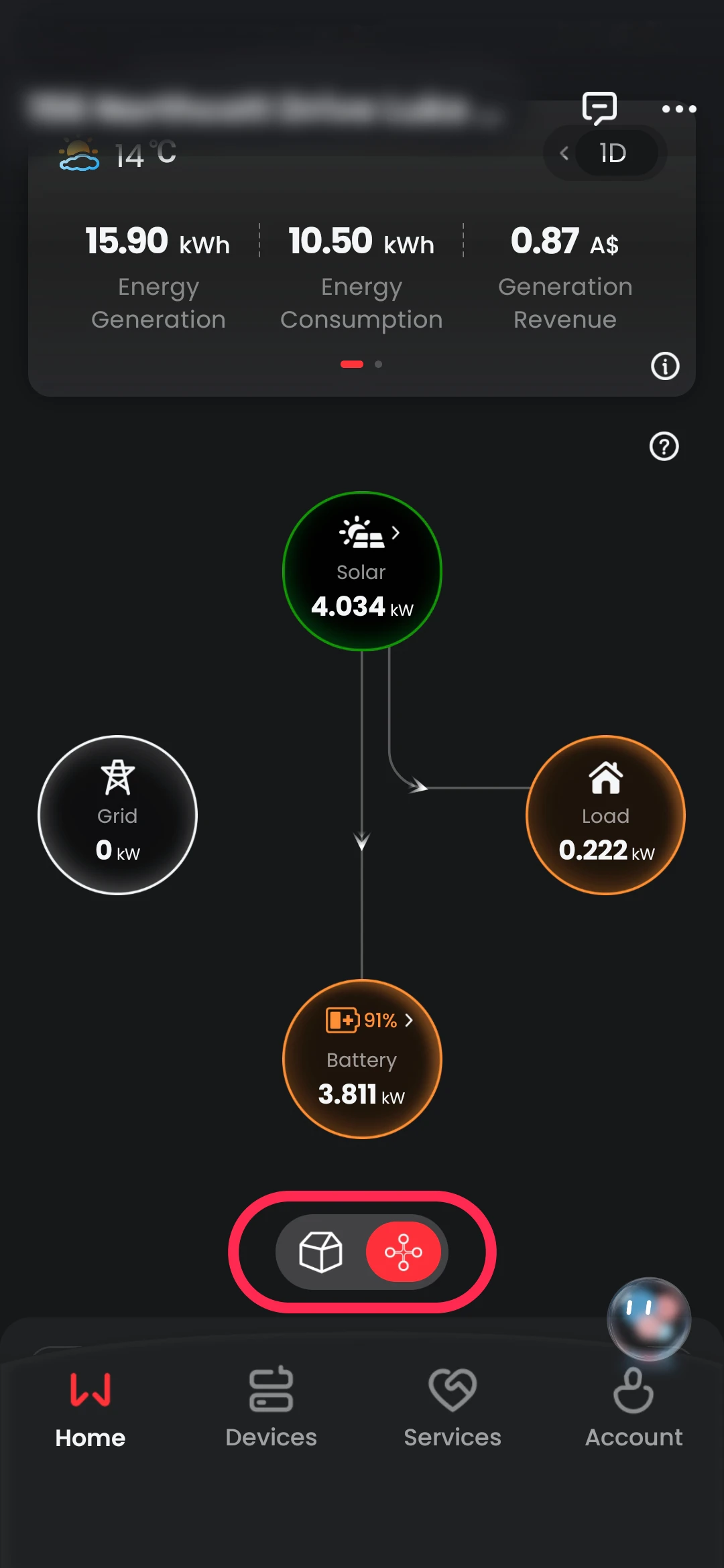
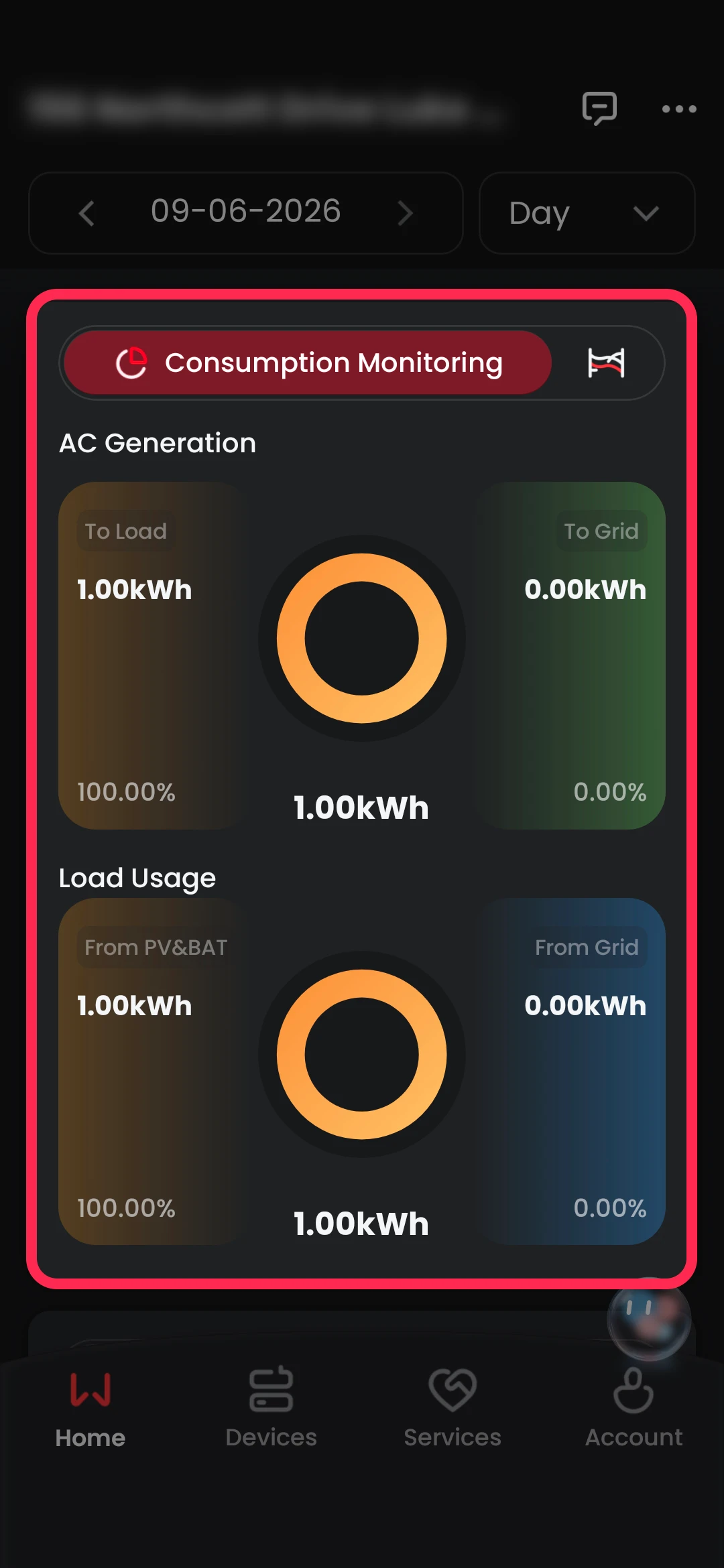
Continuing down on the page, the GoodWe SEMS+ app shows some diagrams that outline how your system is performing.
The consumption monitoring section displays both where your solar generation is going, and where your usage is pulling energy from.
On slide one, the primary kWh figure is the total generation or usage, with the 2 secondary figures outlining your solar vs. energy utilisation.
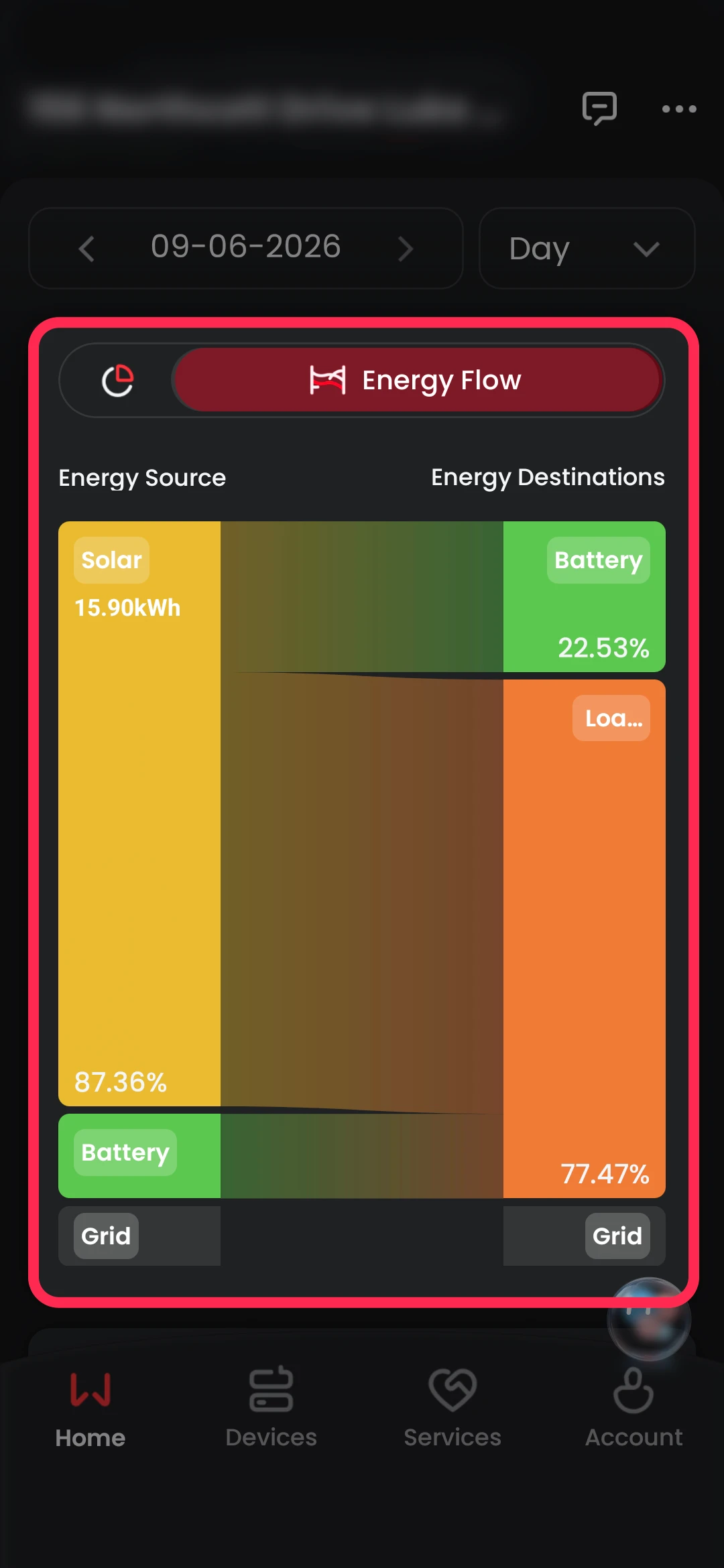
Using the little icon at the top, you can switch tabs to show the energy flow diagram.
On the second slide, it shows a graph that describes your overall energy sources in conjunction with their destinations. This is an easy was to see how much energy is going where.
For a more traditional graph experience, scrolling down will reveal the power curve and additional energy monitoring sections.
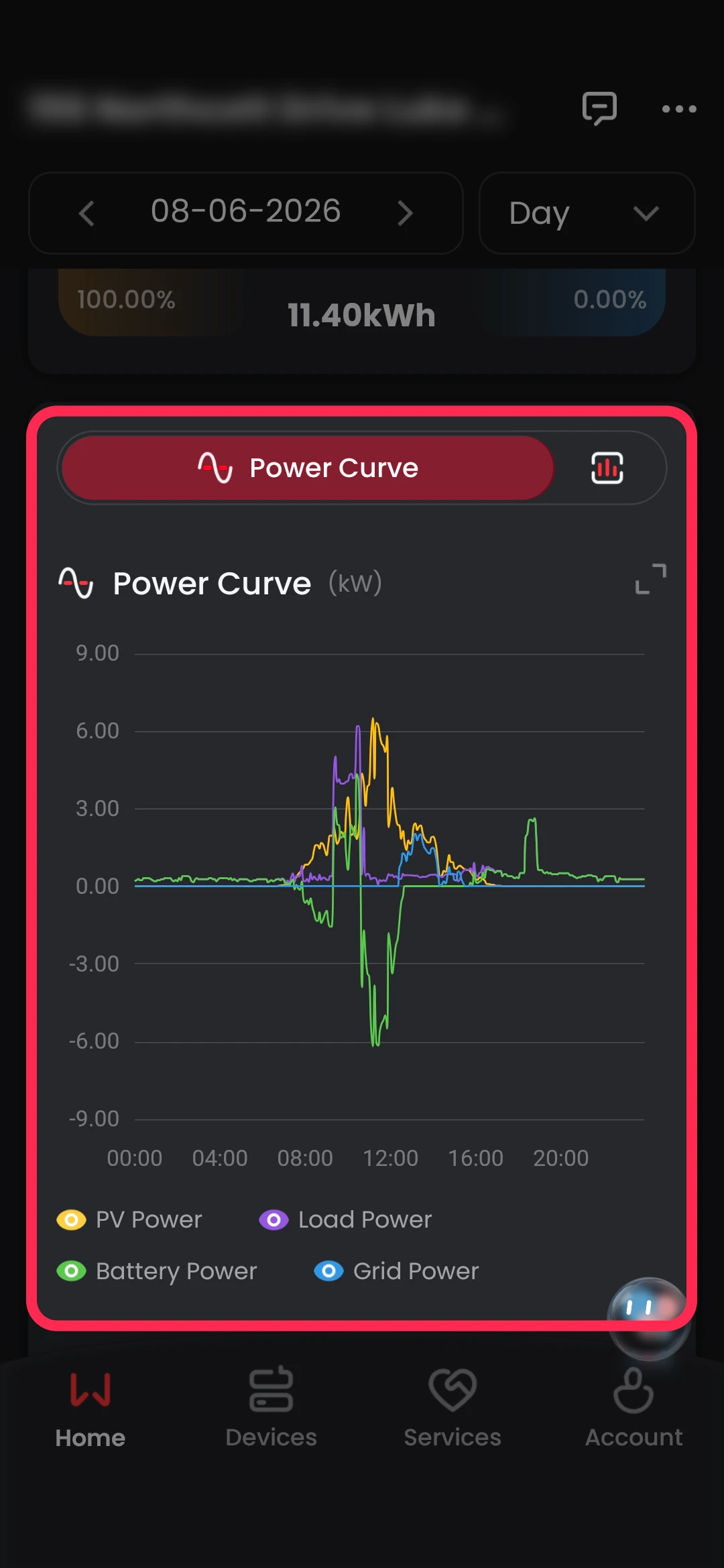
Here you can see your overall system performance with colours differentiating each component.
In slide one, you can see that solar (yellow) starts ramping up around 6:30am, and peaks at around midday. Additionally, you can see that energy usage peaked at around 9am which was fulfilled by the battery (green) which was later charged by the excess peak solar production.
Once the battery had been charged, it fed the remaining solar generation into the grid (blue) at around 1pm.
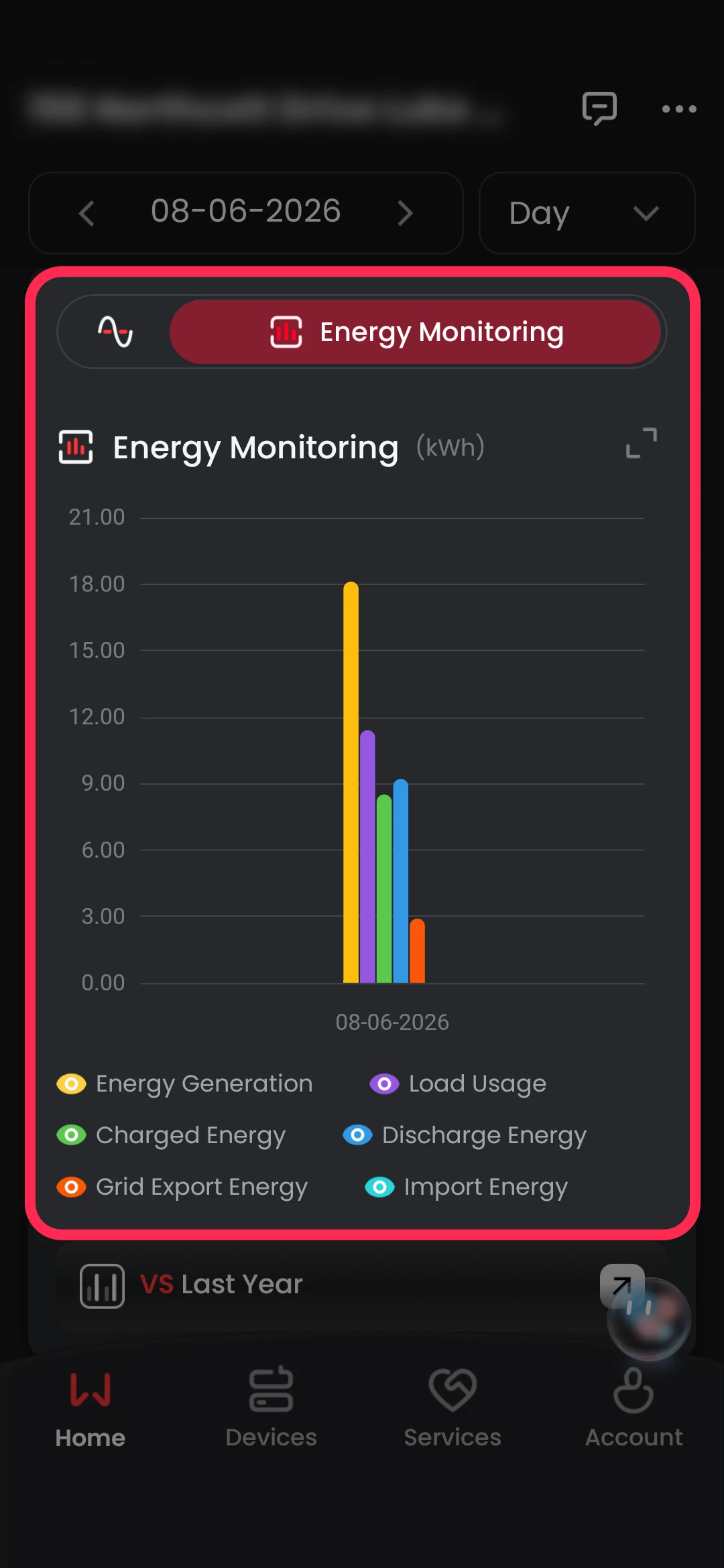
Slide two shows a simple overview of all your components kWh performance. Solar reached almost 18kWh with overall load usage reaching 11kWh.
Note: The imported energy is not shown as no grid energy was used on this day.
Using the options above, you can change the timeframe of data that you want to analyse.
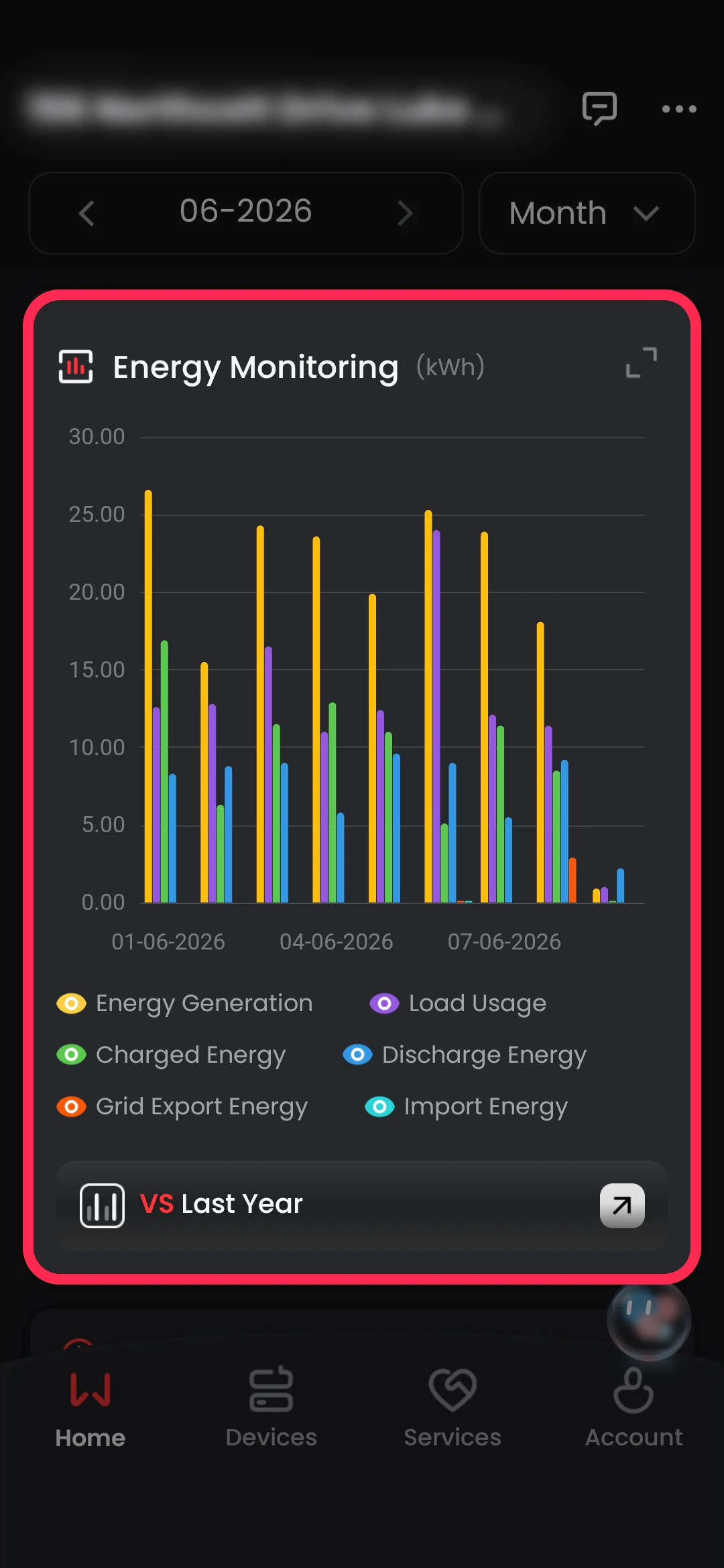
Changing the data to monthly, it gives you a broader view on your systems' performance over the month which can be used to compare daily performance.
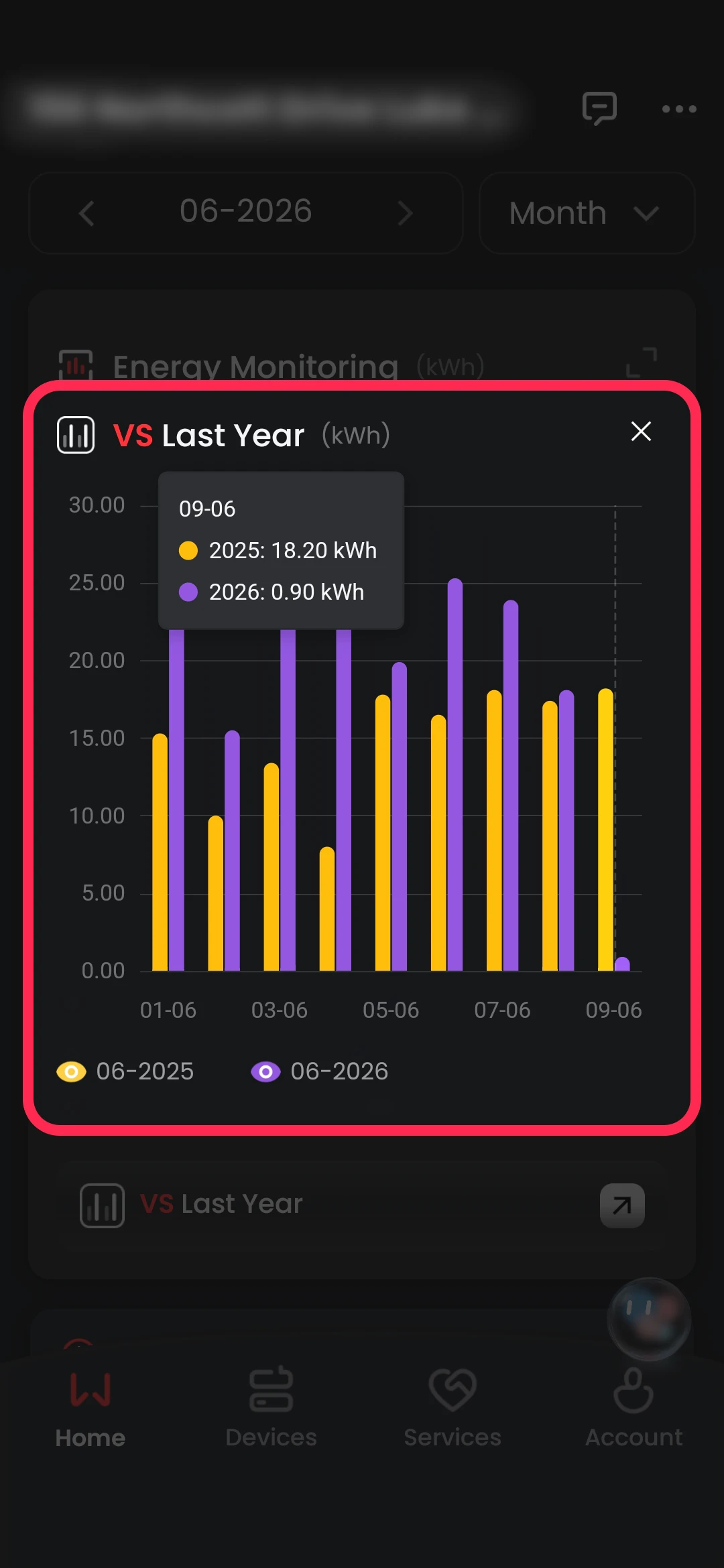
Clicking the 'vs. Last Year' button at the bottom shows a pop-up screen comparison between this and last years' usage.
If you want to view the main energy monitoring graph on full-screen, press the little diagonal arrow button at the top right of the graphs.
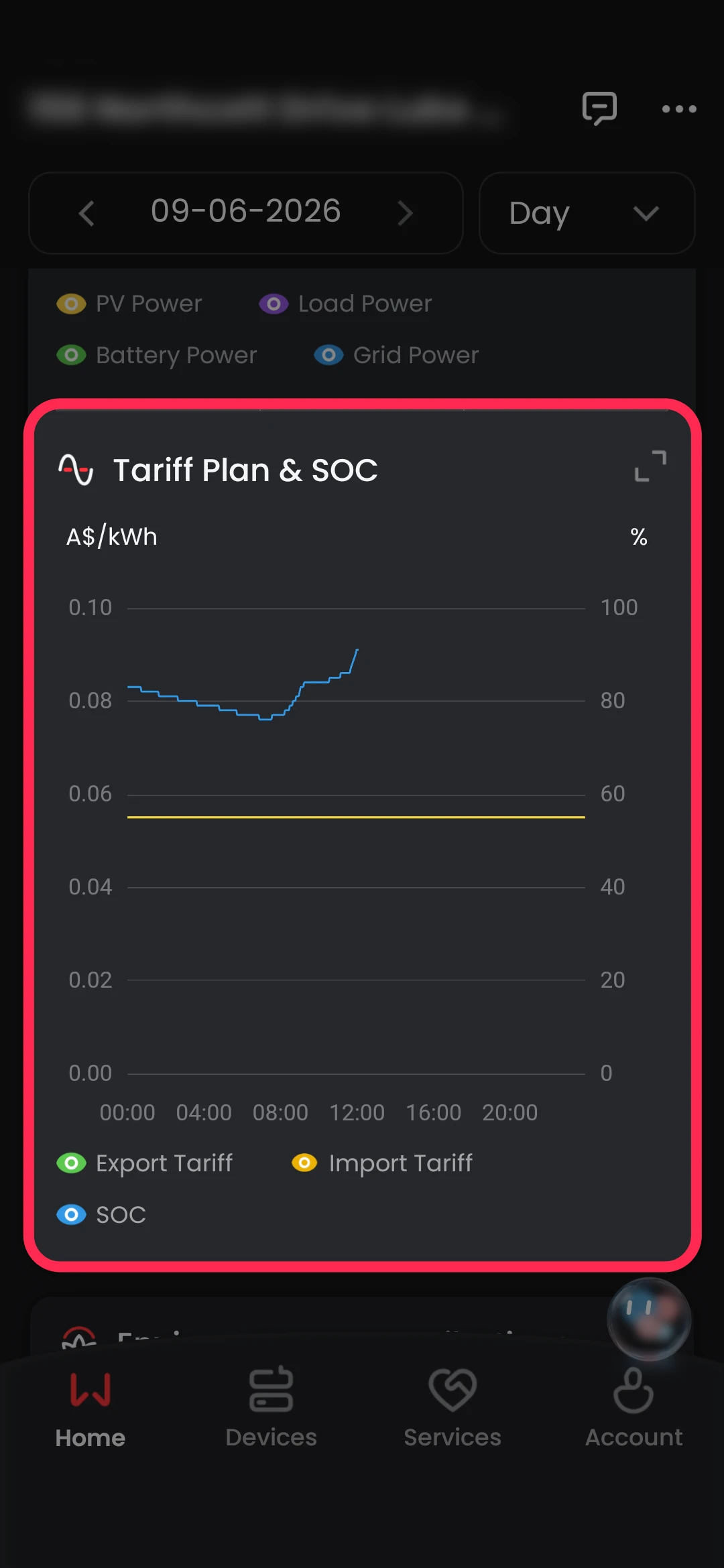
Under the Power Curve section the Tariff Plan & SOC section outlines both the battery's state of charge percentage, as well as export and import and export tariff costs which are both set to 0.05c/kWh.
Tip: Clicking anywhere on the graph will highlight a performance snapshot with the periods' metrics.
And lastly, the 'environmental contributions section shows you estimated renewable statistics on how much your system is saving/contributing to sustainability.
.webp "GoodWe solar app environmental contributions")
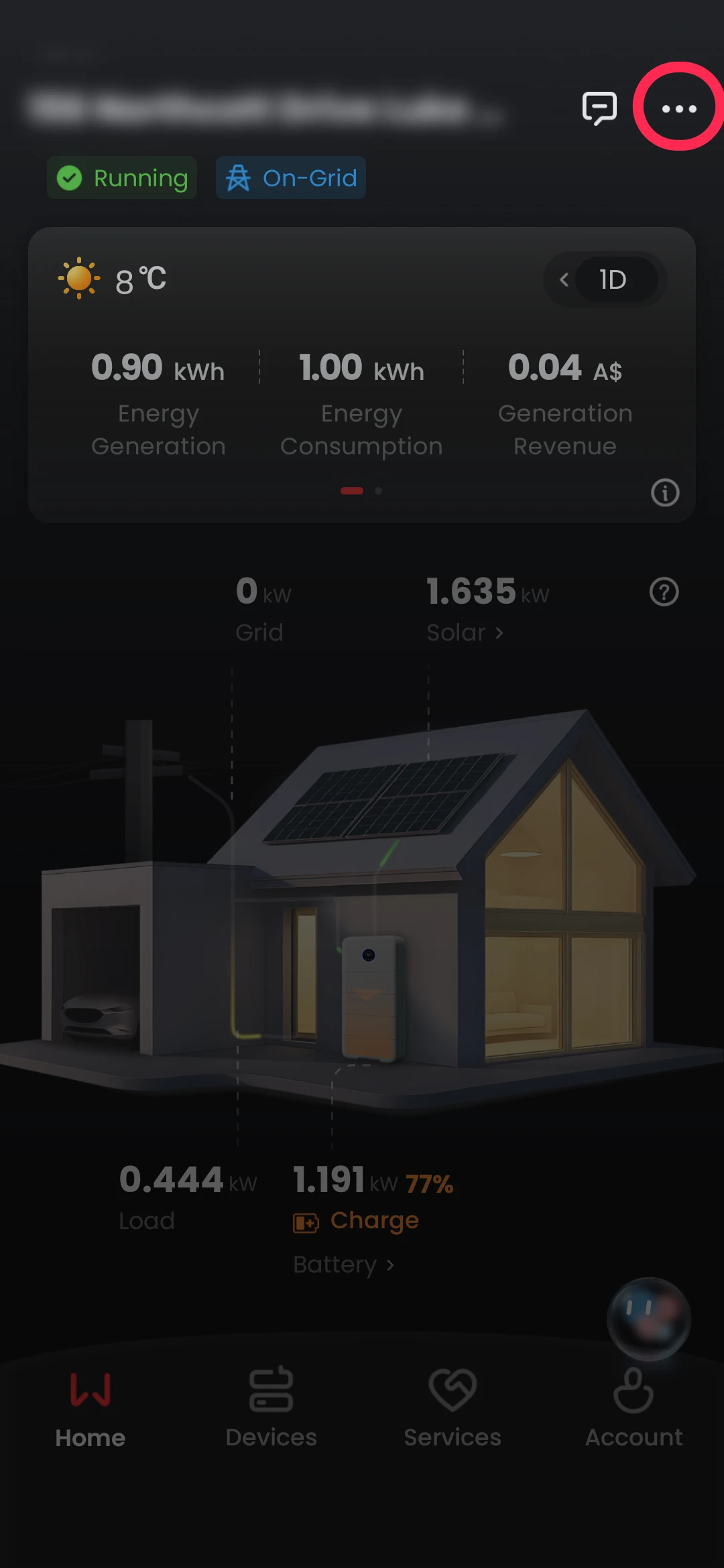
From the home page, press the 3 dots at the top right to access your system settings on the GoodWe SEMS+ app,
This will show a menu where you can view/edit your basic information, alarms, tariff settings, and app configuration. (Watch the how to set it up guide here.)
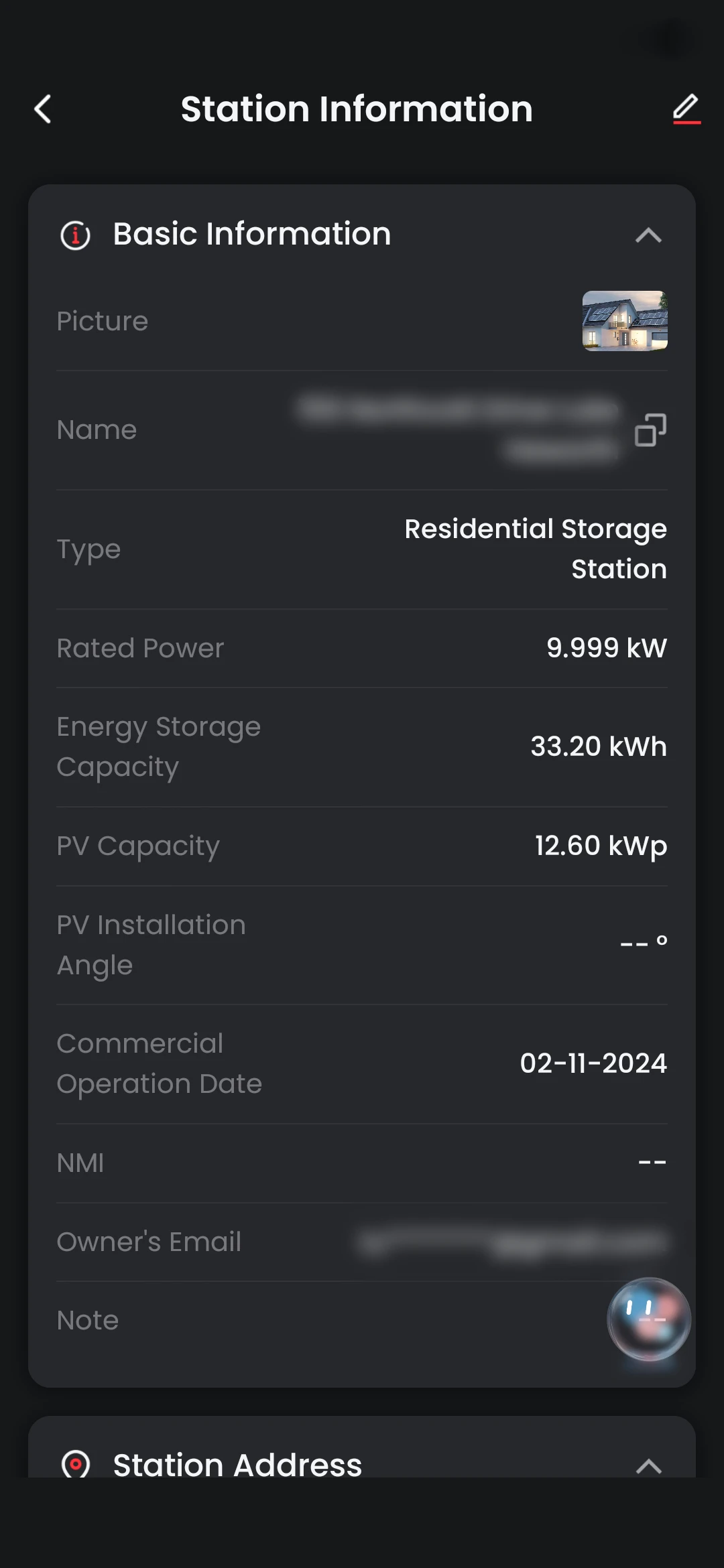
Basic information (slide 3) will show you information like your system's rated power and capacity, as well as NMI and its operation date.
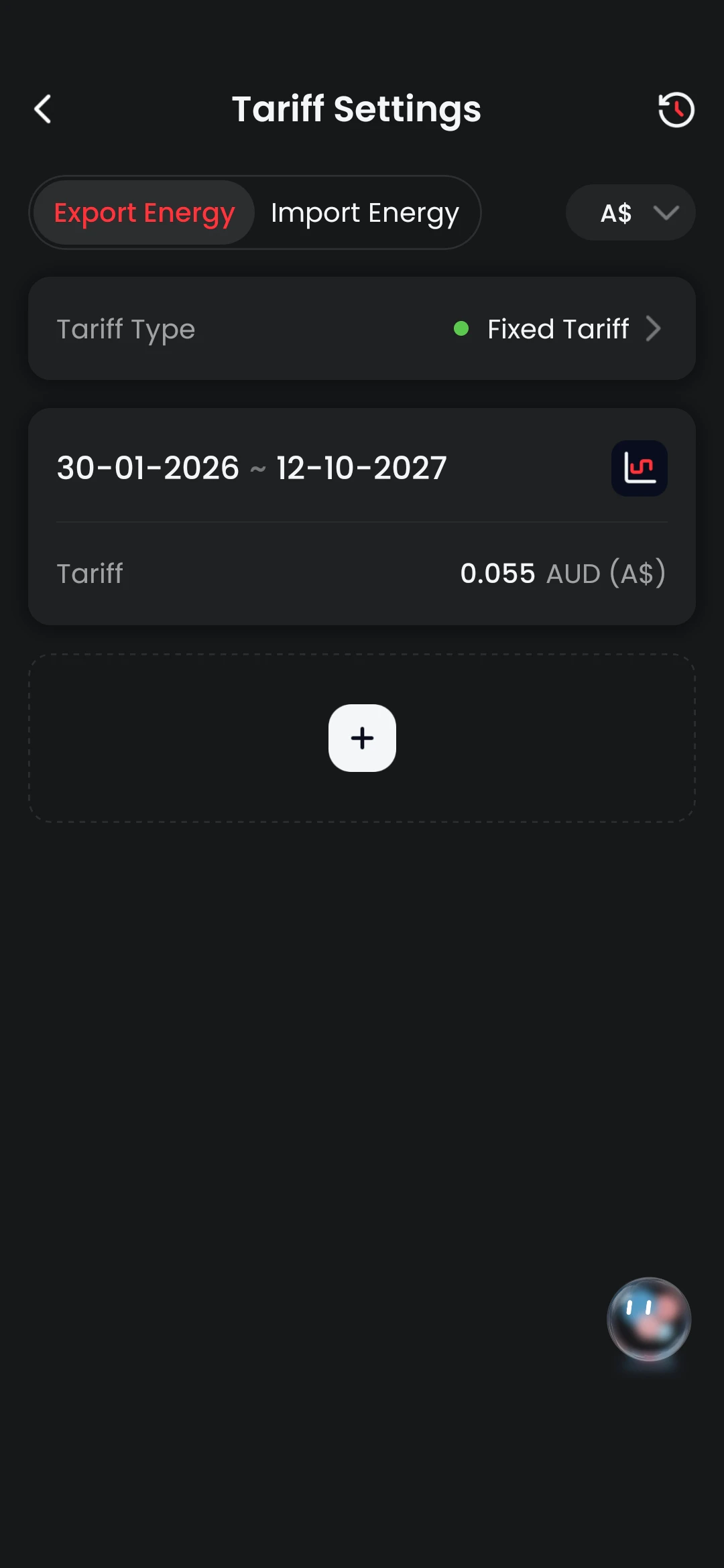
To adjust your tariff settings, navigate back to the station settings page and select tariff settings. From here you can adjust your tariff configuration like choosing between 'fixed tariff' and 'time-of-use' tariff, as well as pricing options.
Prefer a video tutorial? Watch here.
.webp "Basic information page")
.webp "GoodWe ESA Tariff settings app")
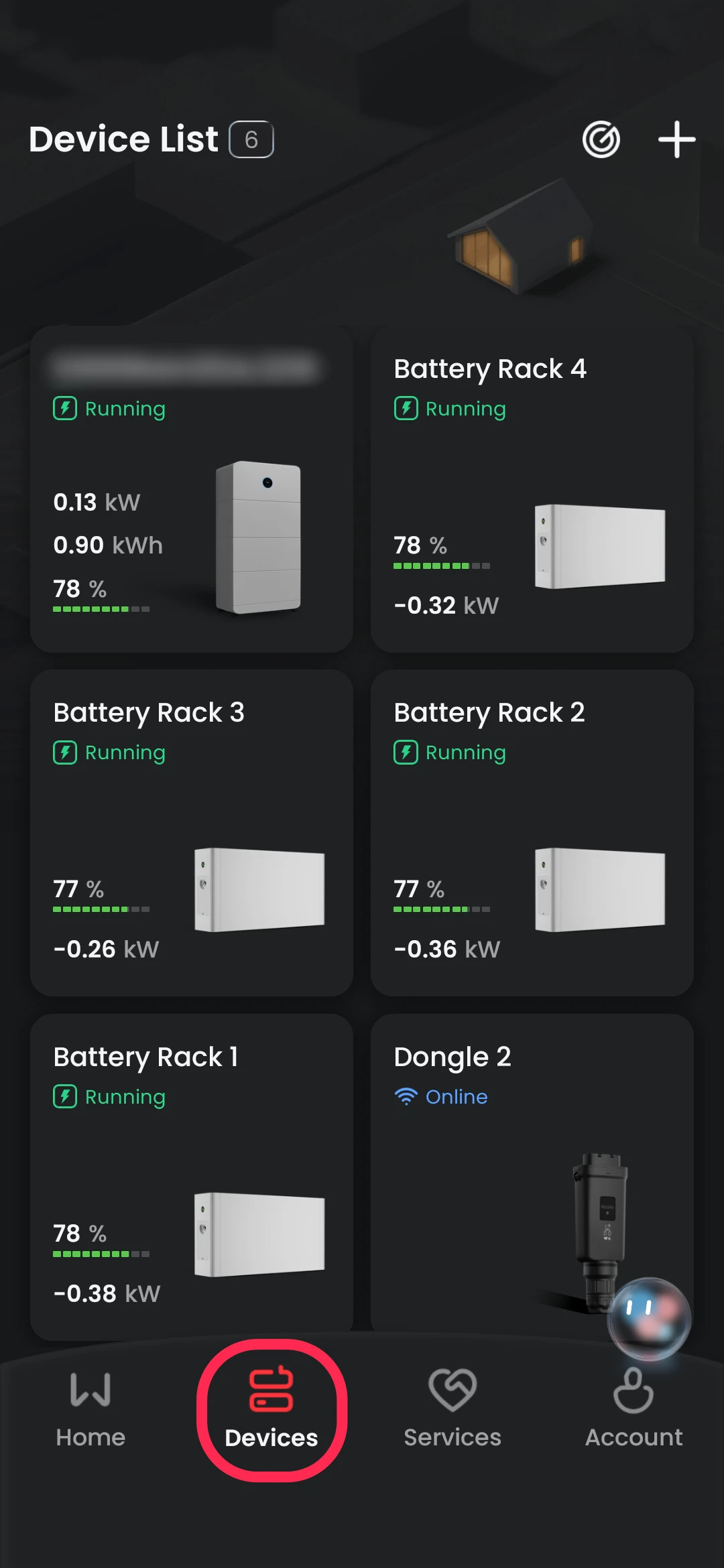
Pressing on the devices button takes you to your devices/components list where you can monitor and control individual components.
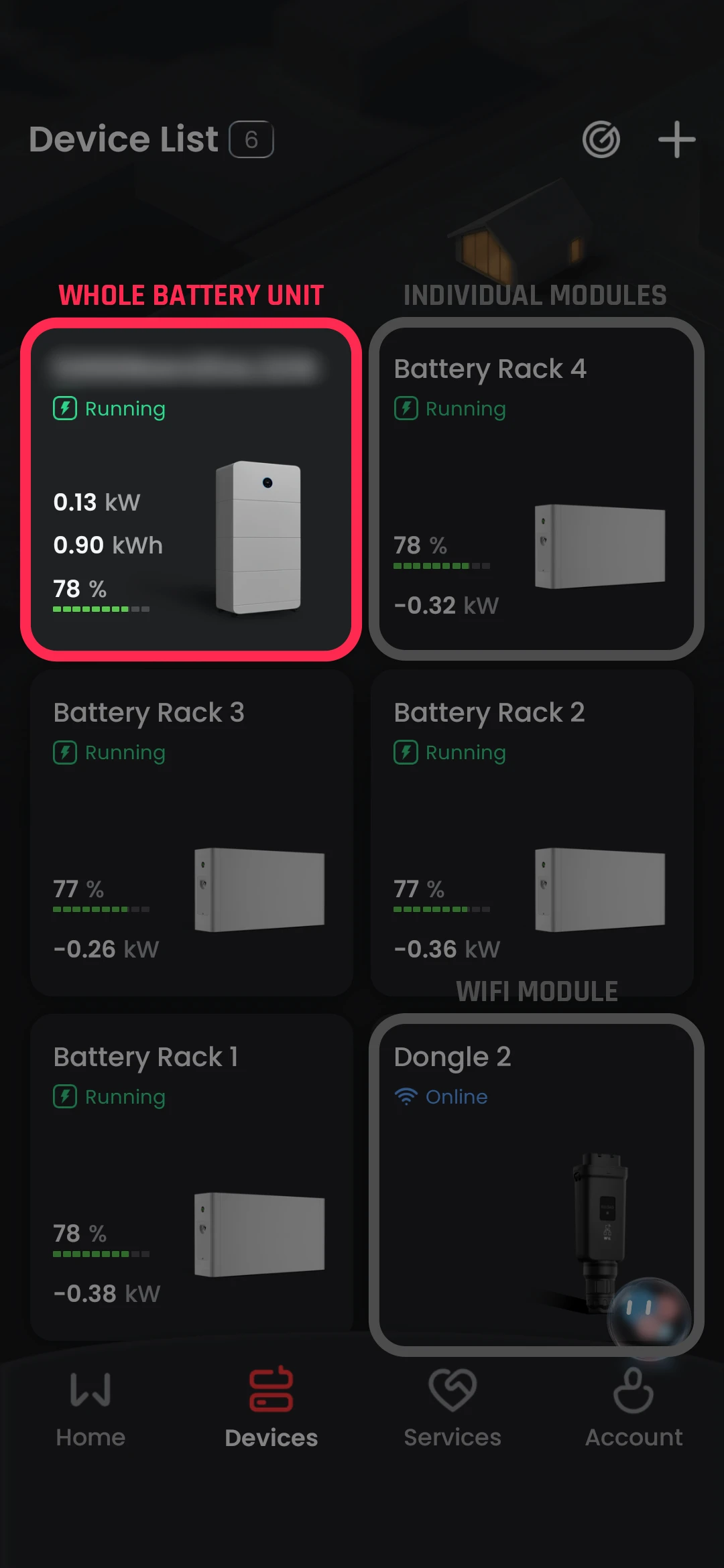
The top left 'tile' is your whole battery unit, and the other battery-looking tiles are the individual modules that make up the unit/stack.
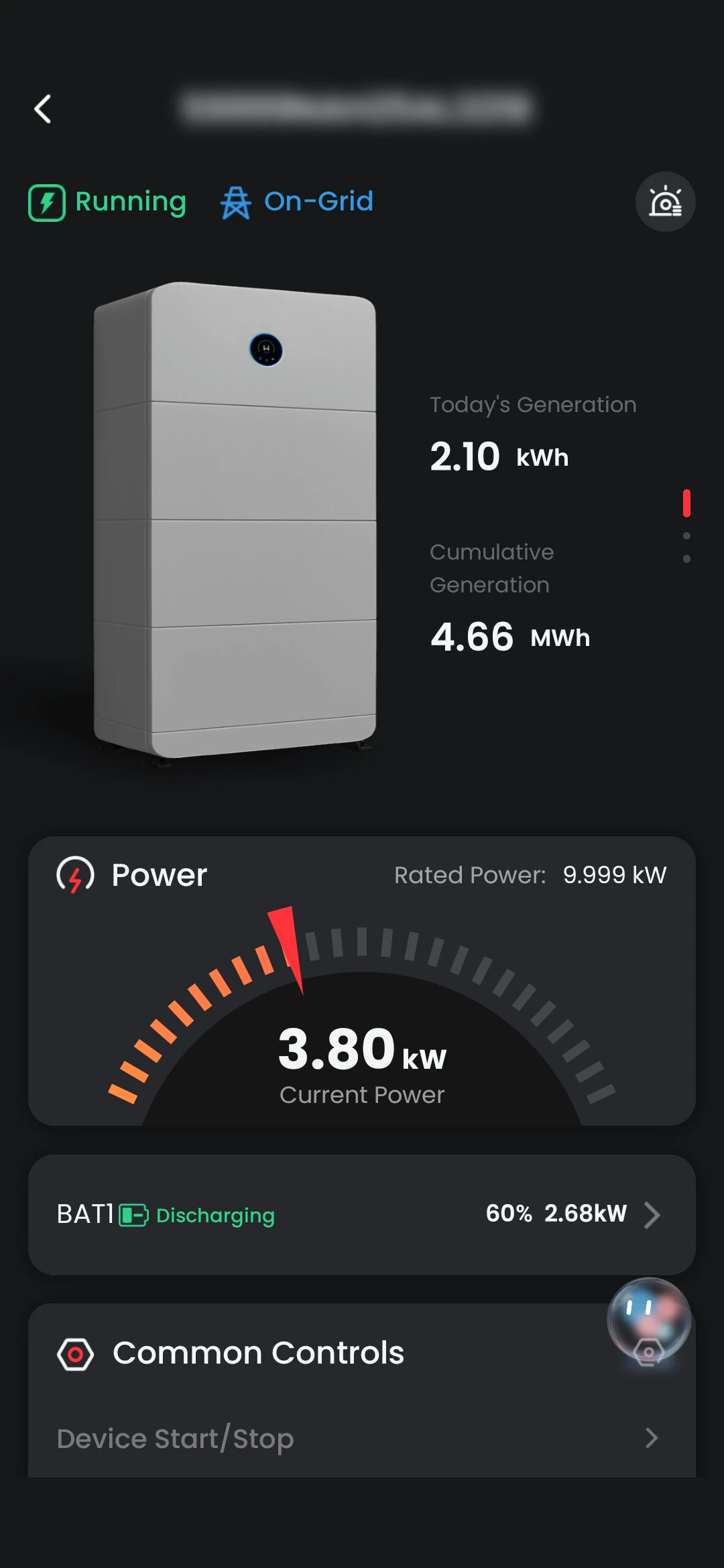
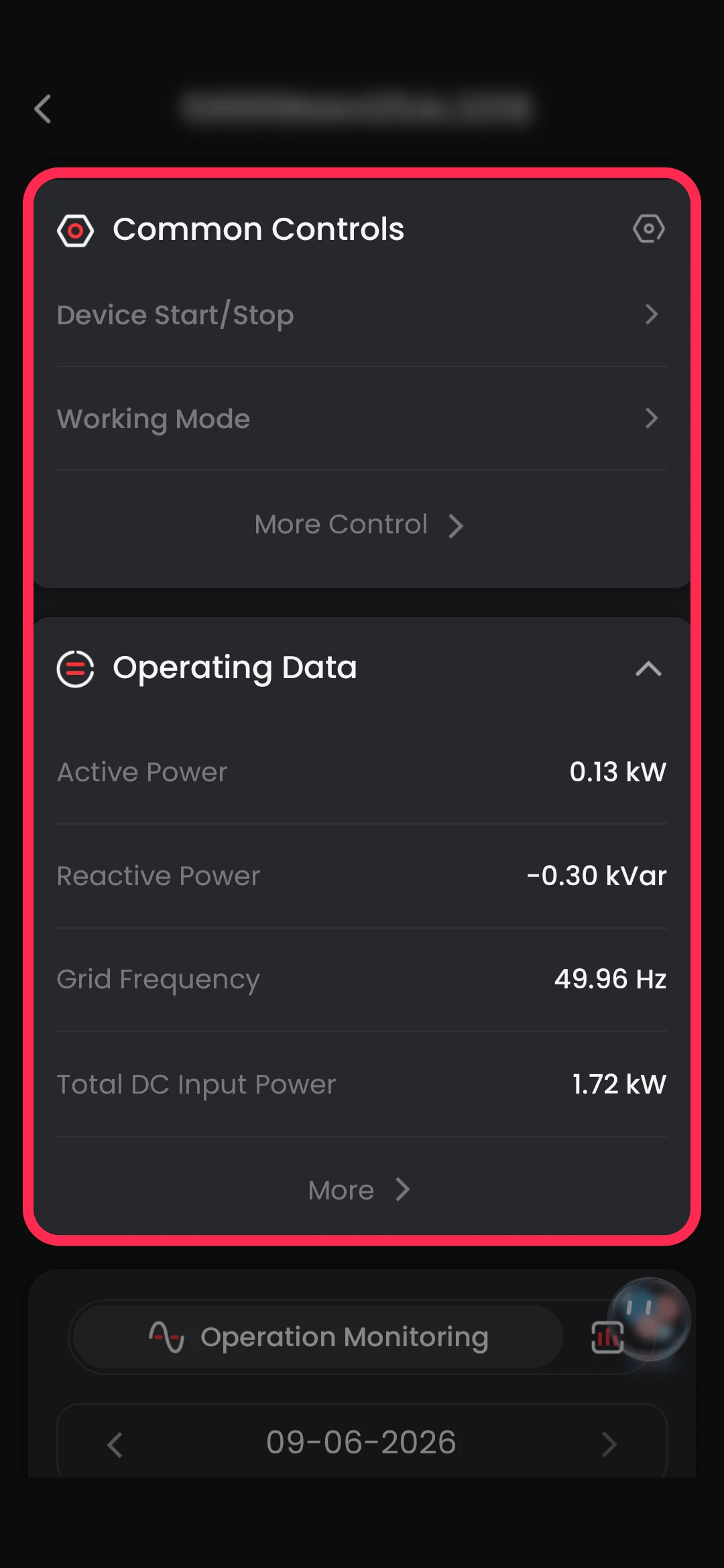
When selecting the battery unit (slide 2), it shows a quick summary, with a meter which shows the current power (this refers to the amount of power the battery is discharging), followed by the 'common controls' section. (slide 3).
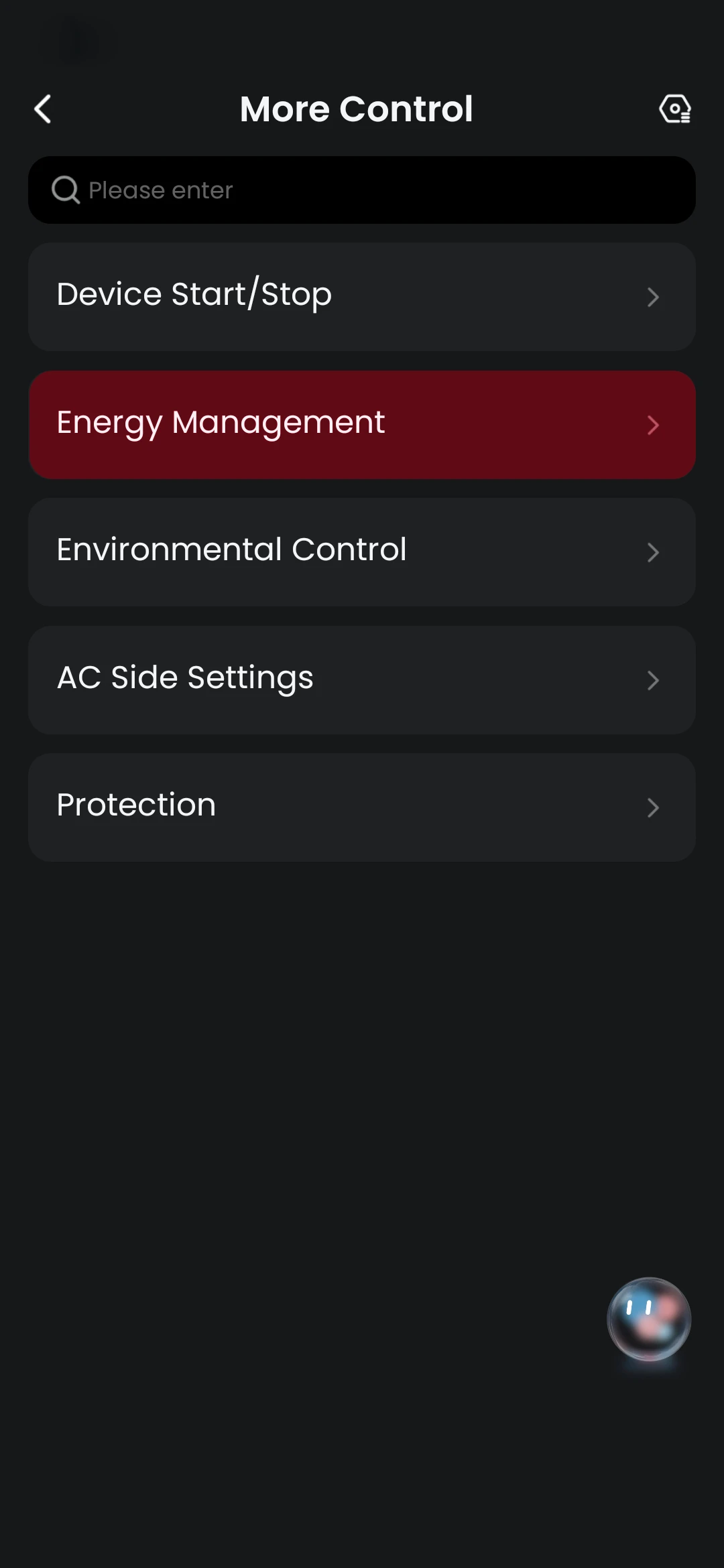
Under Common Controls, you can access more control options. Under energy management, you can access your battery's mode and change it according to your preferences.
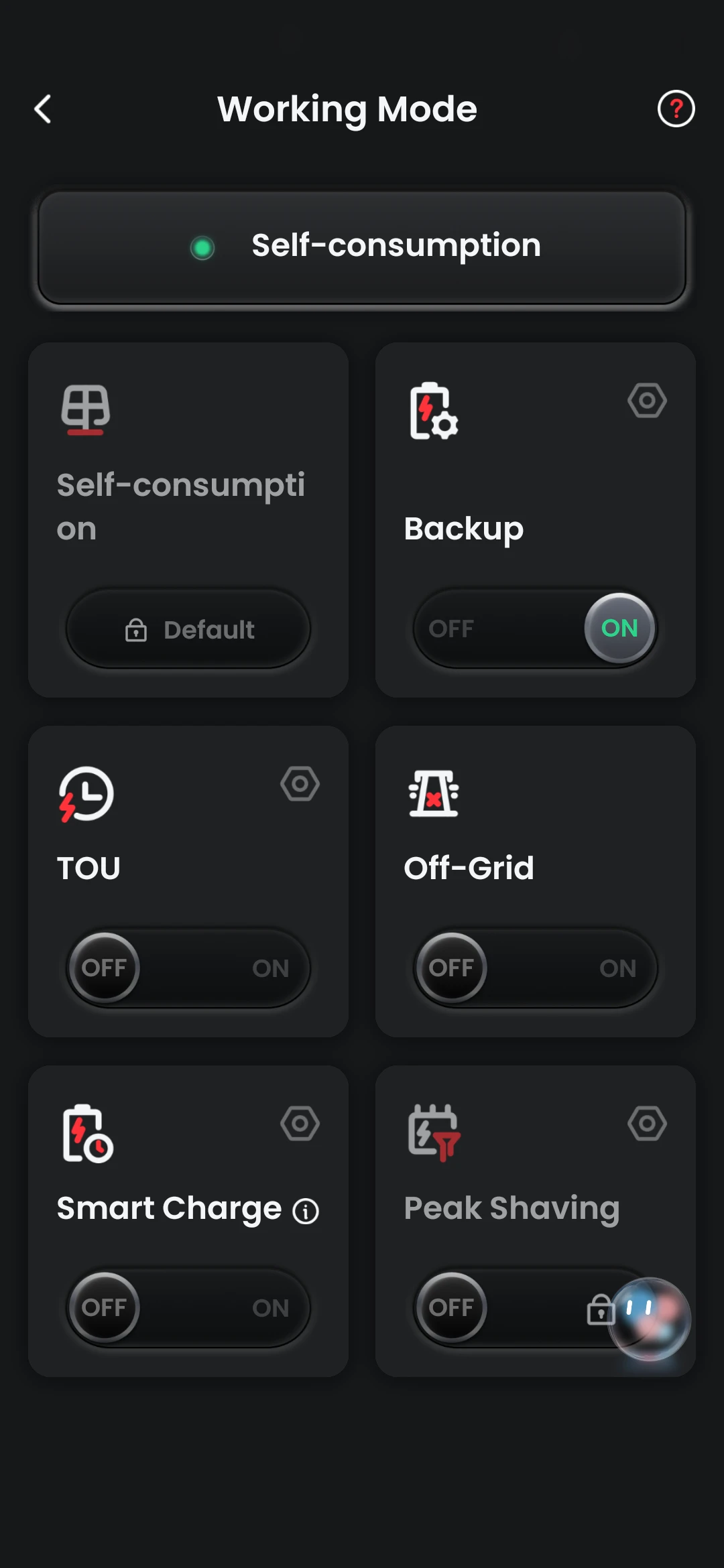
Self Consumption The default mode for most homes. Solar powers your home first, excess energy charges the battery, and the battery discharges in the evening to reduce grid draw. Simple, set-and-forget.
Backup The battery reserves a set amount of charge specifically for power outages. It won't discharge below your backup threshold during normal operation, so you always have a buffer ready when the grid goes down.
TOU (Time of Use) Designed for customers on time-of-use tariffs. You set charge and discharge windows to align with your energy plan — charging when rates are cheap (usually overnight) and discharging when rates are expensive (peak periods).
Off-Grid Cuts the system off from the grid entirely and runs purely on solar and battery. Typically used for properties without a grid connection, or customers who want full energy independence.
Peak Shaving Limits the amount of power drawn from the grid during high-demand periods by using the battery to cover the difference. Most commonly used for businesses wanting to reduce demand charges on their electricity bill.
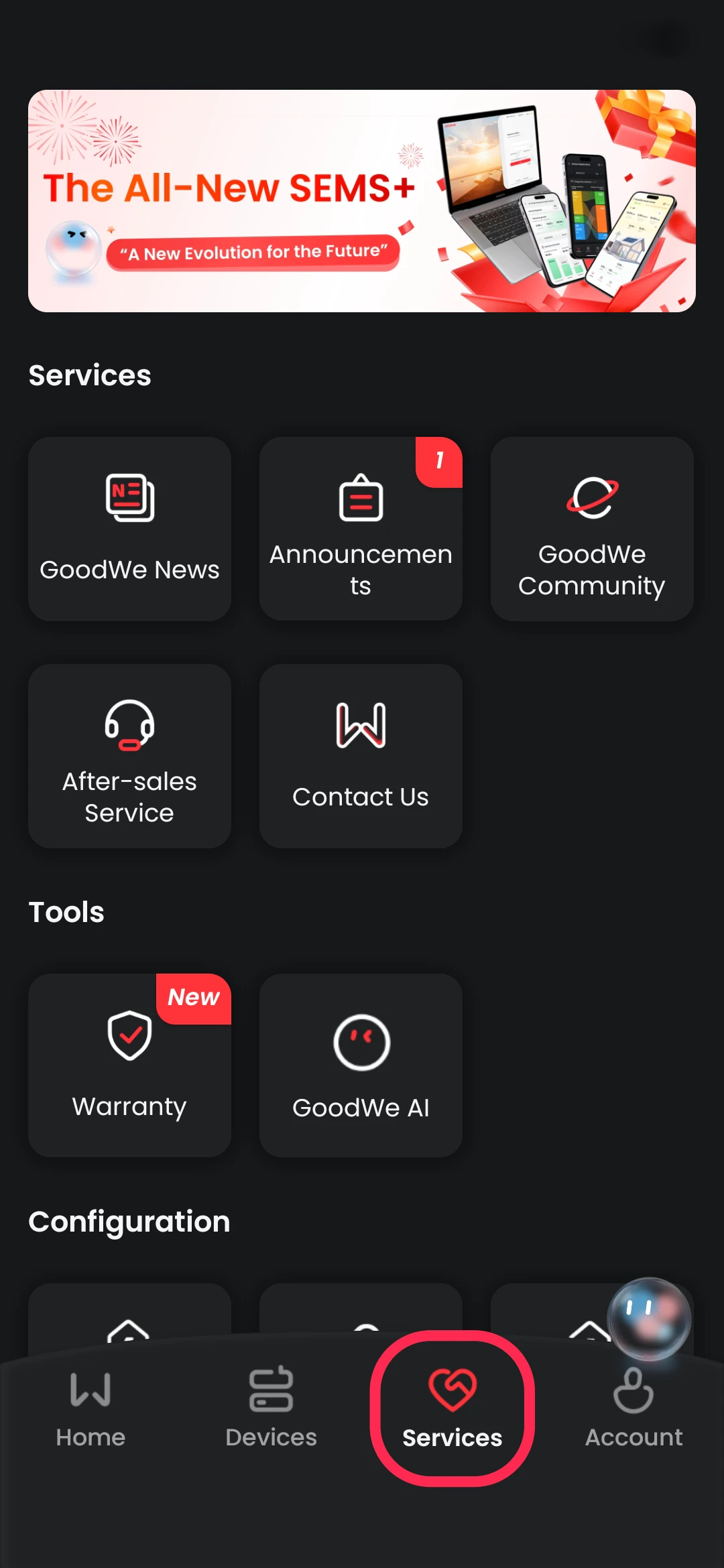
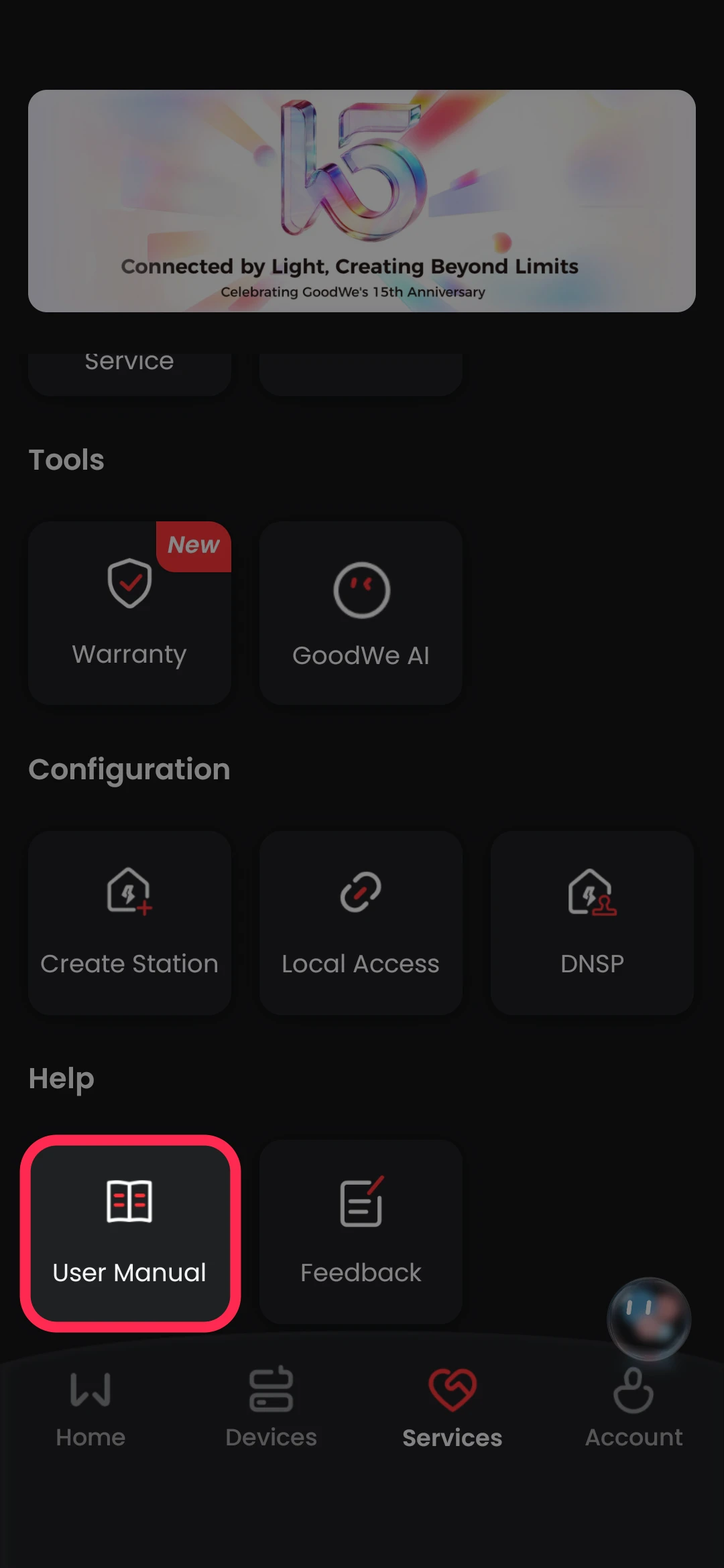
Navigating to the 'Services' tab, it shows a list of tiles to choose from which provide further information to your site, support, and warranty information.
Under 'Help', you can also find your user manual if you need a tutorial on how your system works.
Additionally, you can also access all support/contact methods directly with GoodWe, and DNSP configuration.
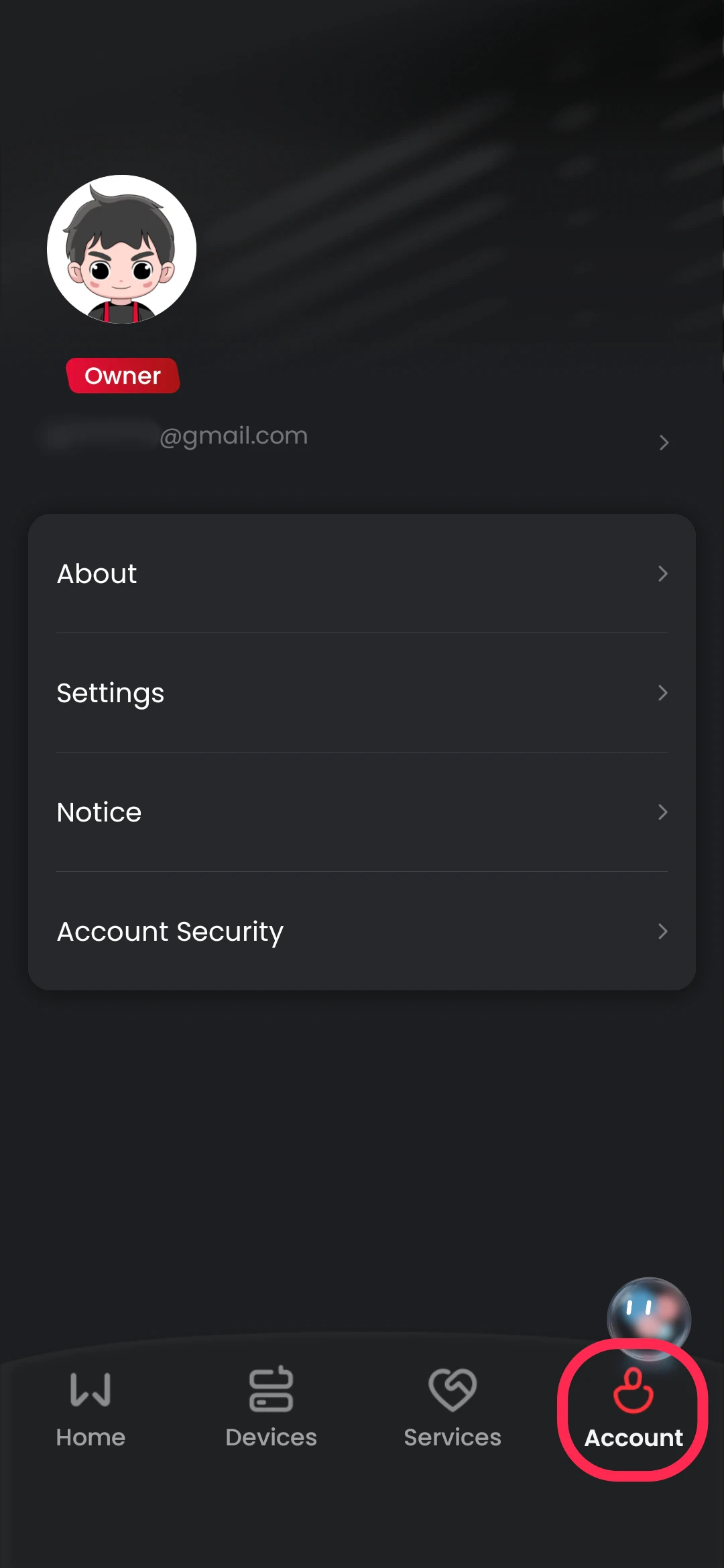
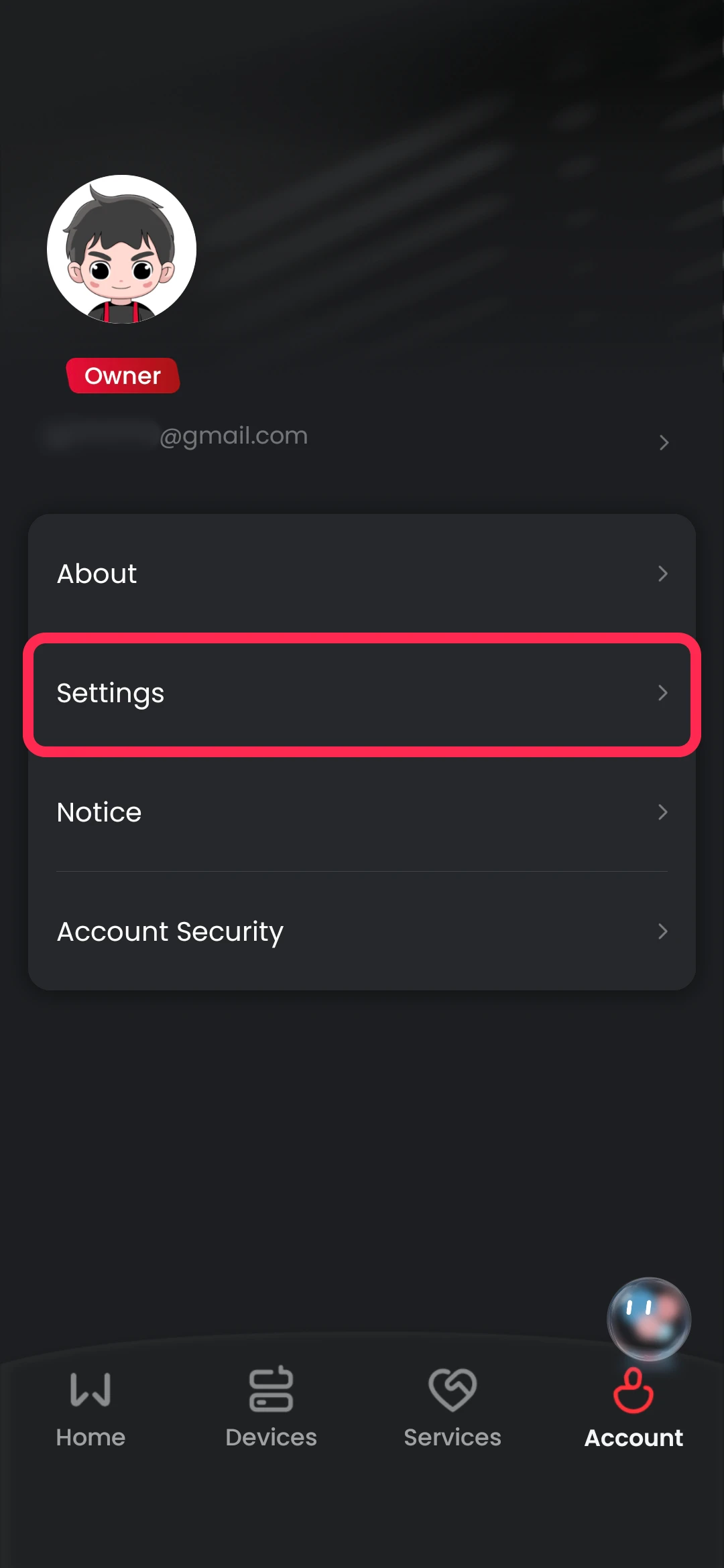
To find your account-related settings and details, navigate to the 'Accounts' tab.
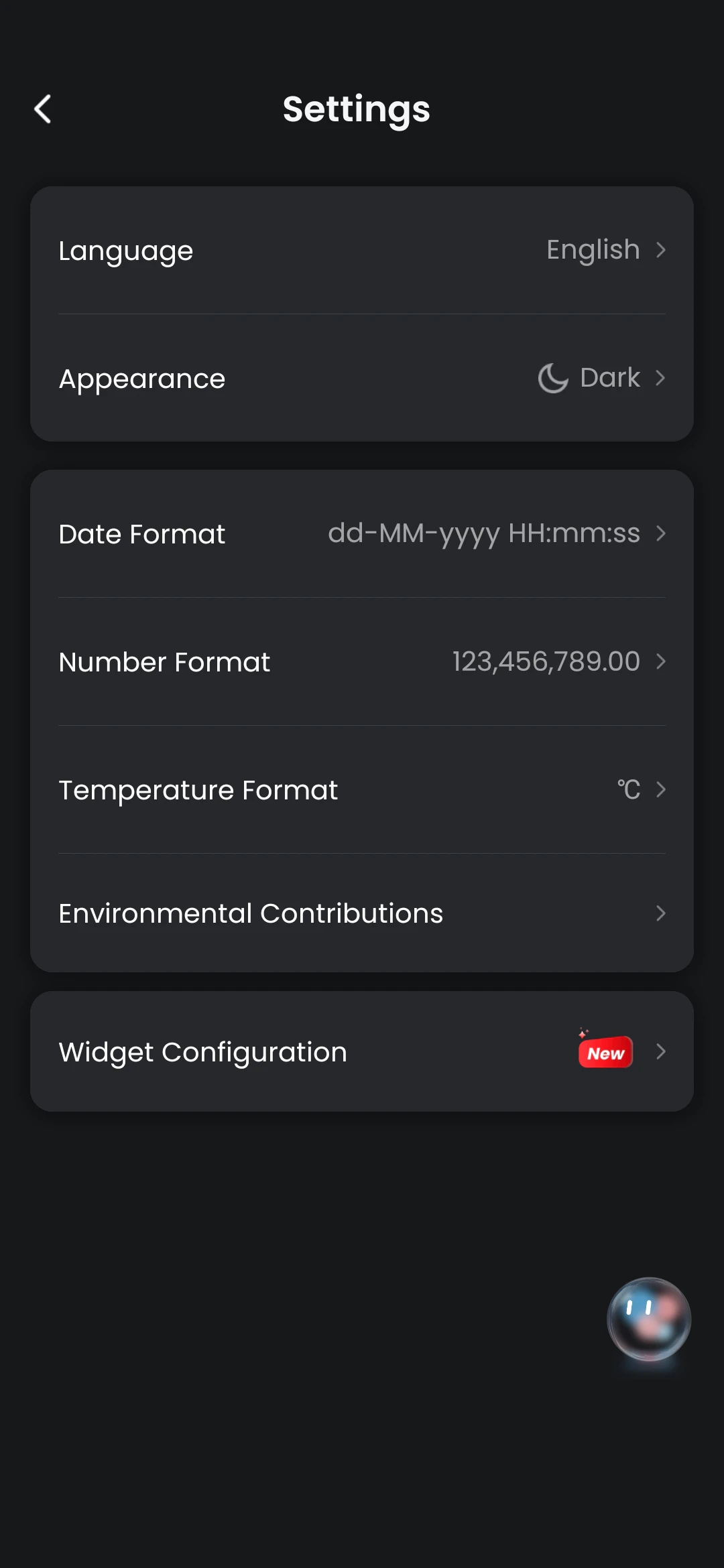
Here you can find information about your account and access account settings like language, number formatting, and appearance.
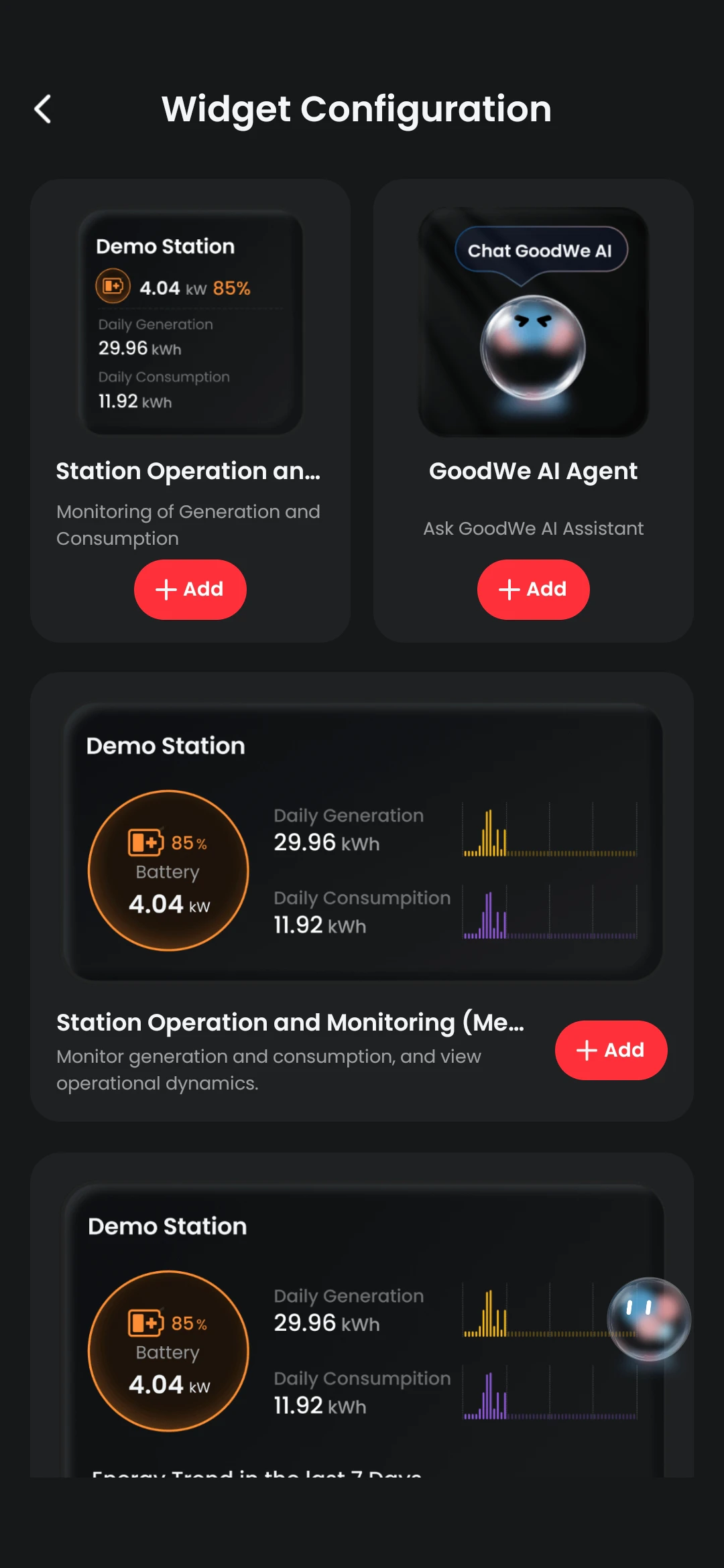
Additionally, you can find your widget configuration (for Android phones), where you can add a quick summary to your phones home page.
This is particularly useful if you're wanting updates without having to open up the app every time.
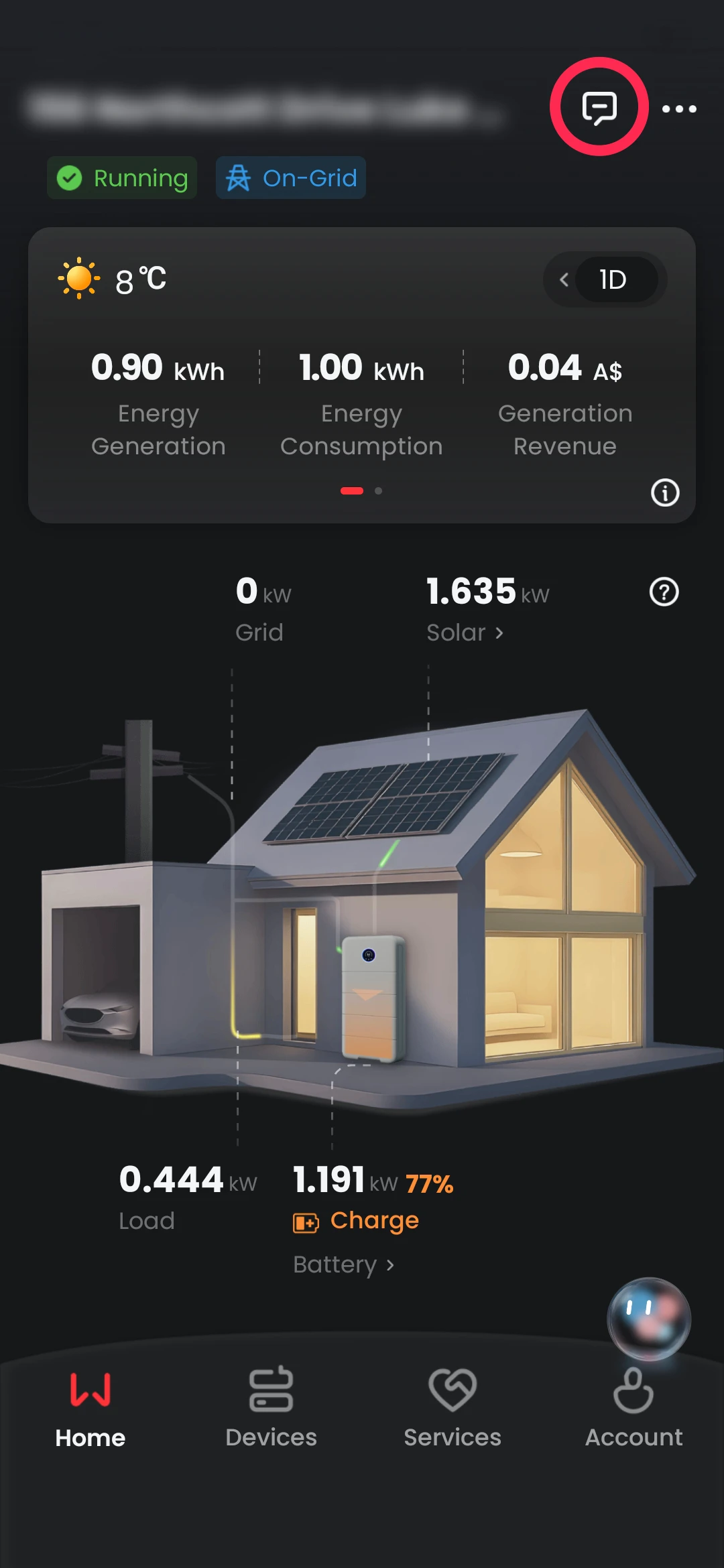
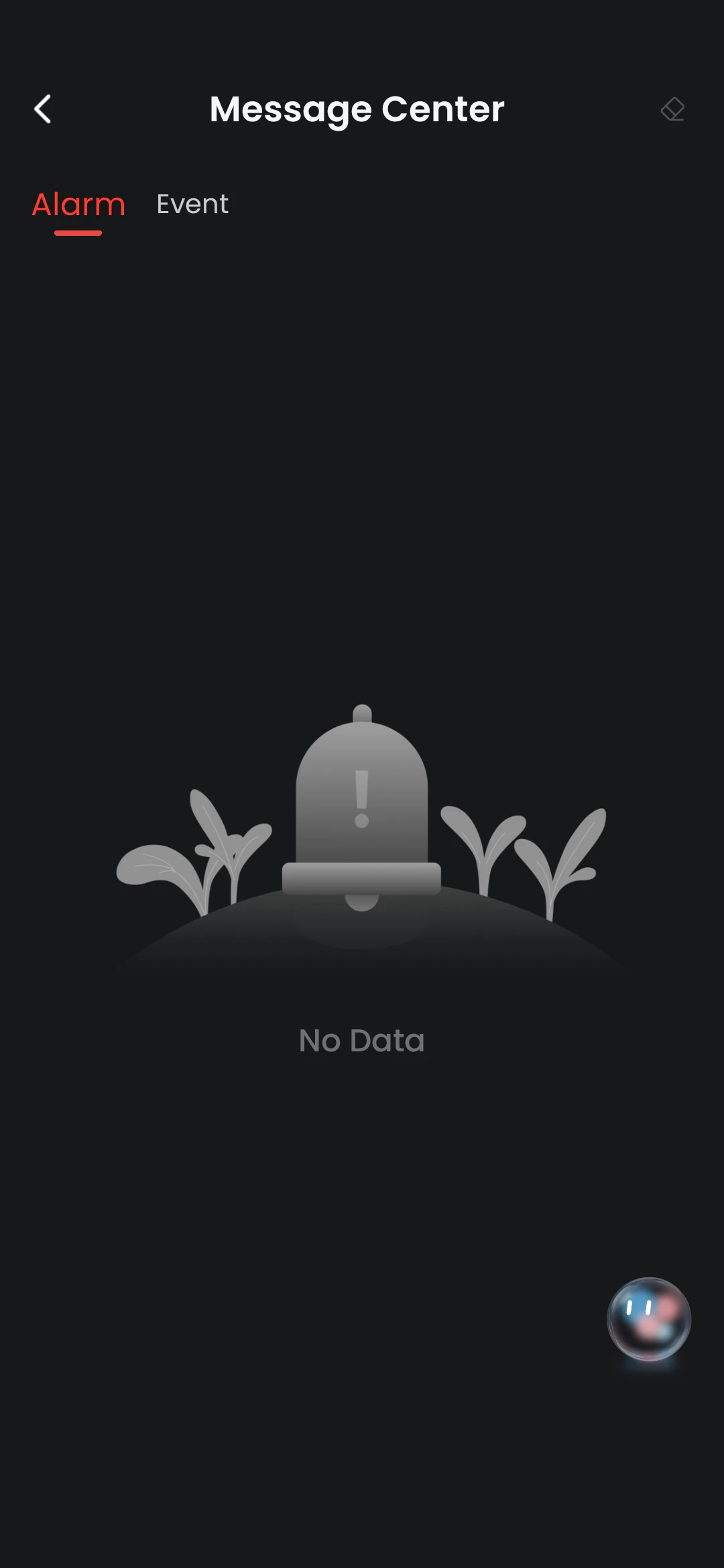
Navigating back to the home screen's top right corner, you can find the alerts button which opens up any alarm or event notifications.
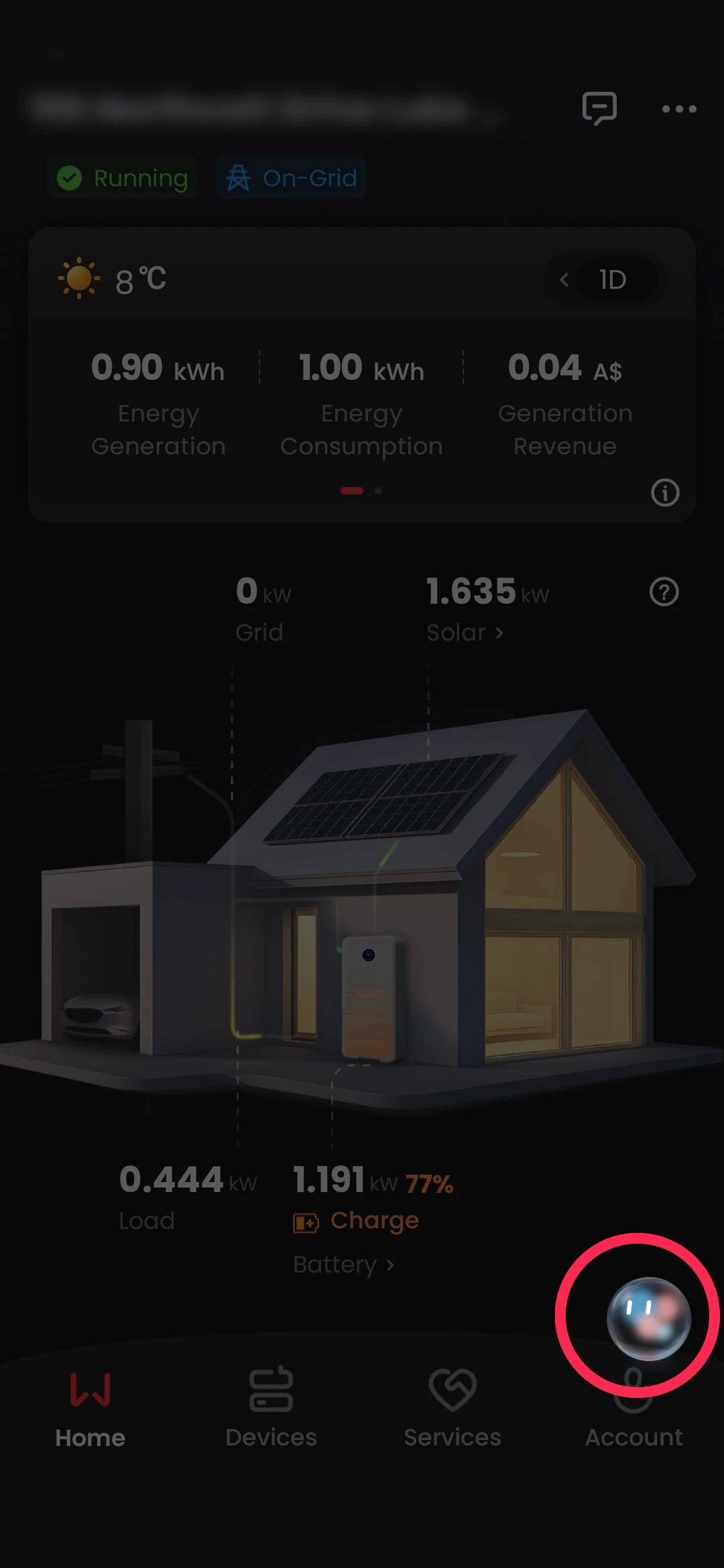
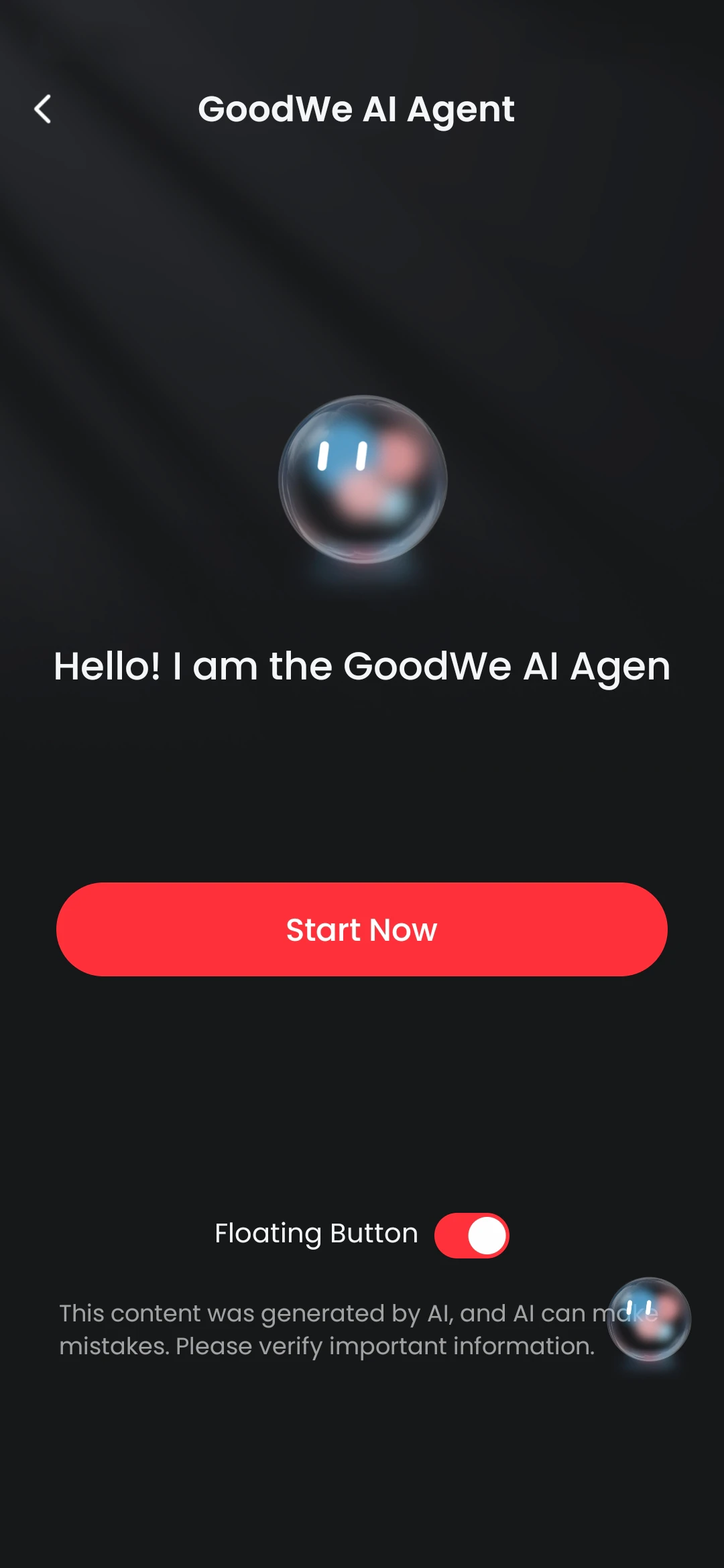
Accessible from all pages, the little icon at the bottom right is GoodWe's AI Agent which is designed to make questions and troubleshooting easy with relevant documentation and information for the user.
You can ask it questions at the bottom or choose from one of the pre-written boxes with common FAQs.
Additionally, you can access your past conversations at the top right where the 2 line icon is. Here you can turn the button off if you prefer, start a new chat, and access previous conversations for reference.
There you have it! The GoodWe SEMS+ app guide is completed. Loved it? Let us know below, and if you
didn't, feel free to leave us your feedback.
Stay informed with the latest insights, tips, and updates from our team.
Not all batteries provide blackout backup by default. Learn what happens, what your battery is backing up, and how to stop your battery draining too fast.
Read moreFind available rebates & subsidies for solar systems, battery storage, and VPPs in NSW. Explore eligibility and maximise live incentives today.
Read moreNot sure which battery matches your solar system? Compare solar & battery size combinations, from 6.6kW to 13.3kW+, & find the right fit in Newcastle.
Read more
Leave a Comment